




Back to: Kiosk Users
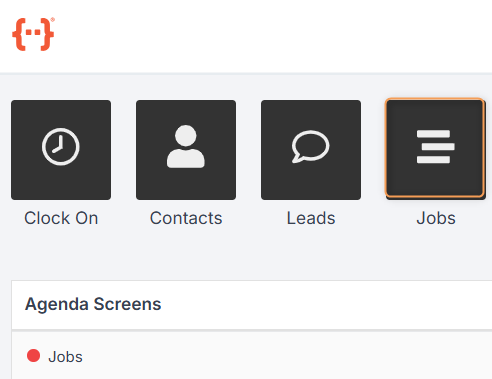
From the Kiosk Dashboard, press Jobs to go to the Jobs Tab:
The Jobs Tab looks like this:
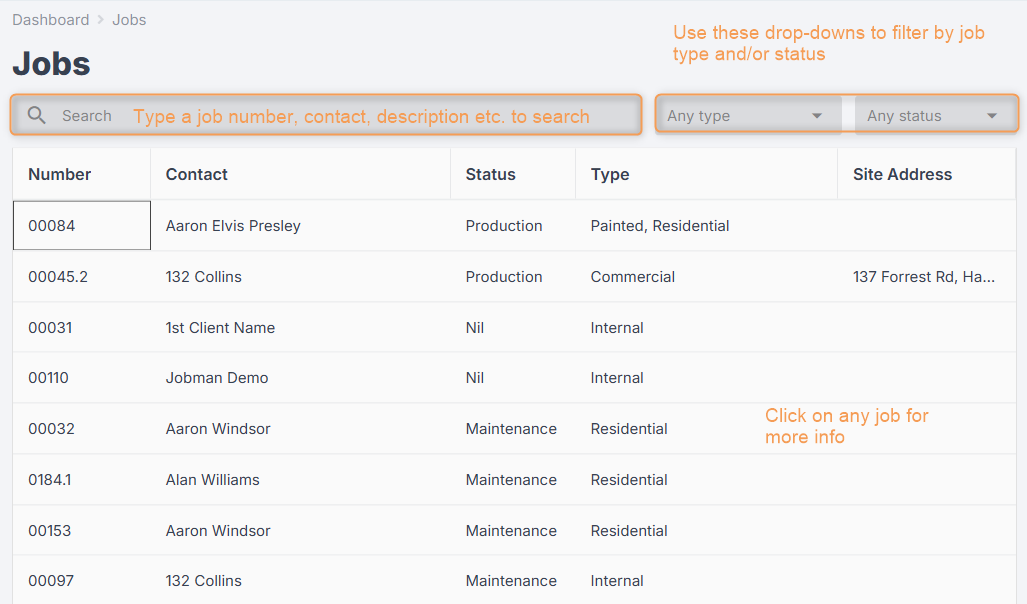
- Use the Search bar to look for a specific job number.
- Use the Type and Status drop-downs to filter your jobs for any combination of job types/statuses.
- As with your agenda screens, you can control how the columns in the Jobs Tab are displayed. (See previous lesson.)
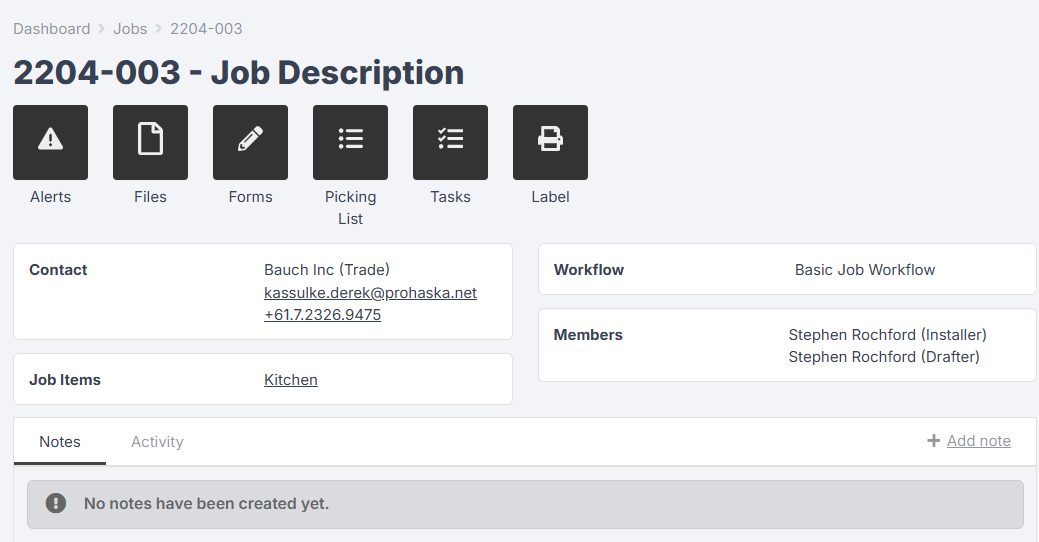
- Click on a job to see more information:
Printing Labels
If you have materials in your factory or warehouse belonging to a job and you need to print a label for them, find that job in the Kiosk by navigating to the Jobs Tab, searching for the job number, and clicking into the job as shown above.
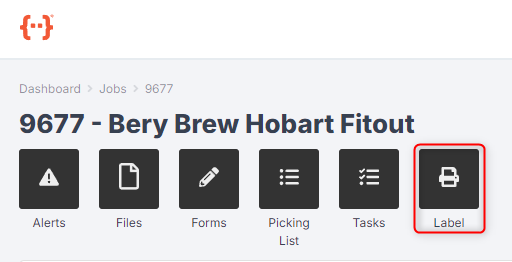
Press Label:
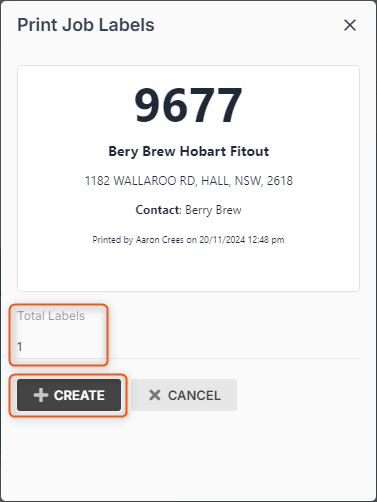
Select the quantity of labels to print, then click Create:
Select your label printer from the print settings menu, then click Print:
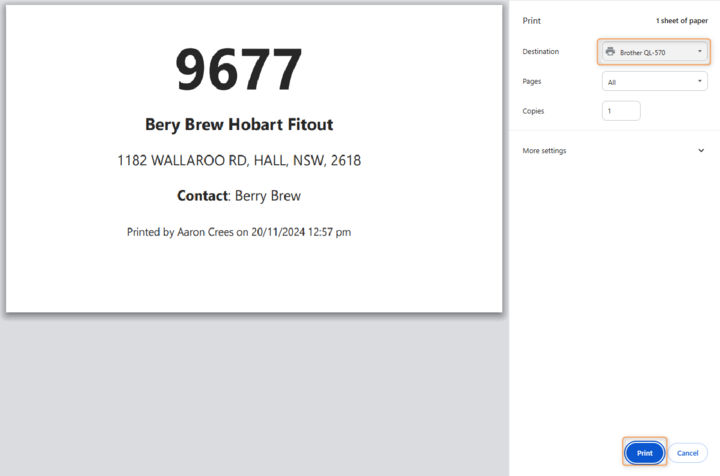
Tip: The template for Kiosk labels can be edited in Settings > Templates by an office user with the relevant staff permissions.
Using the Picking List
When you have taken materials from your factory or warehouse to allocate to a job, find that job in the Kiosk by navigating to the Jobs Tab, searching for the job number, and clicking into the job.
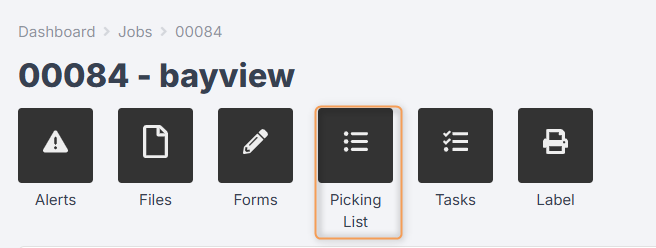
Press Picking List:
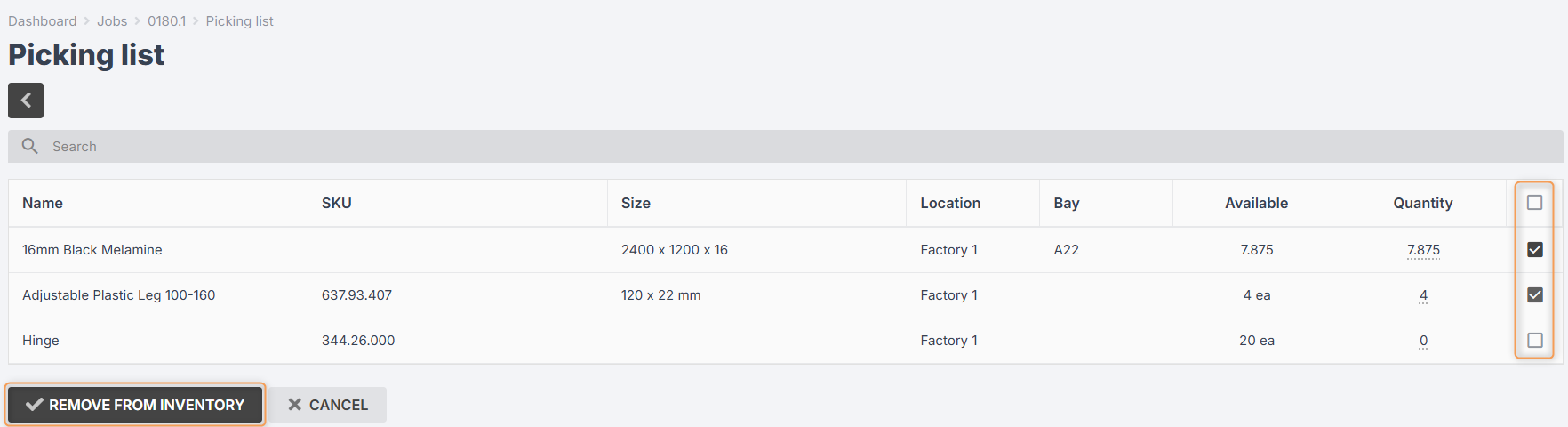
Select your materials from the list and click Remove from Inventory:
Filling Out Forms
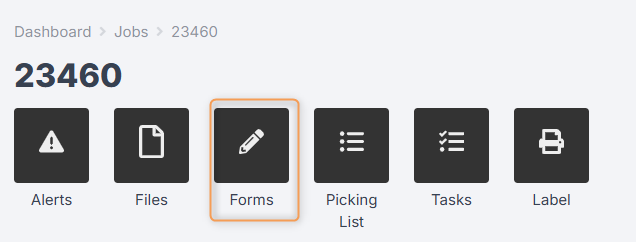
When you click into a job from the Jobs Tab, you can fill in any forms related to that job (e.g. site inspection reports, safety hazard checks) by pressing Forms:
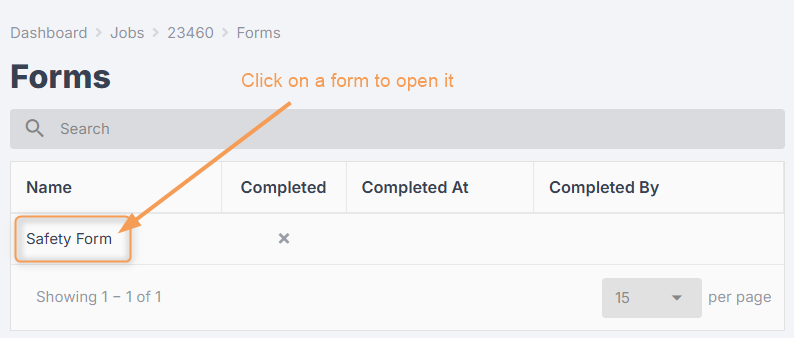
Click into your form from the list:
Click Update to fill in your form:
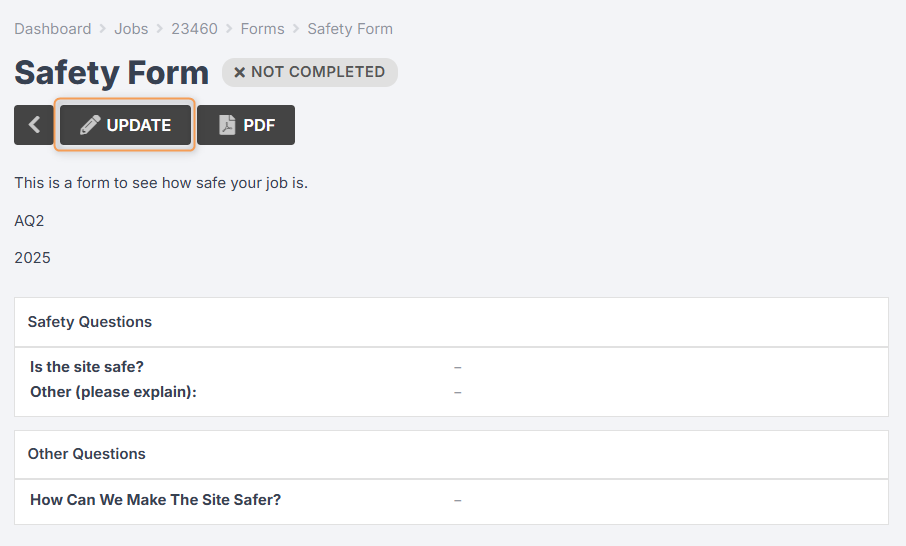
(Note: Some forms are view-only in the Kiosk. If a form is view-only, you will not be able to see an Update button.)
Type in your answers and click Save Changes:
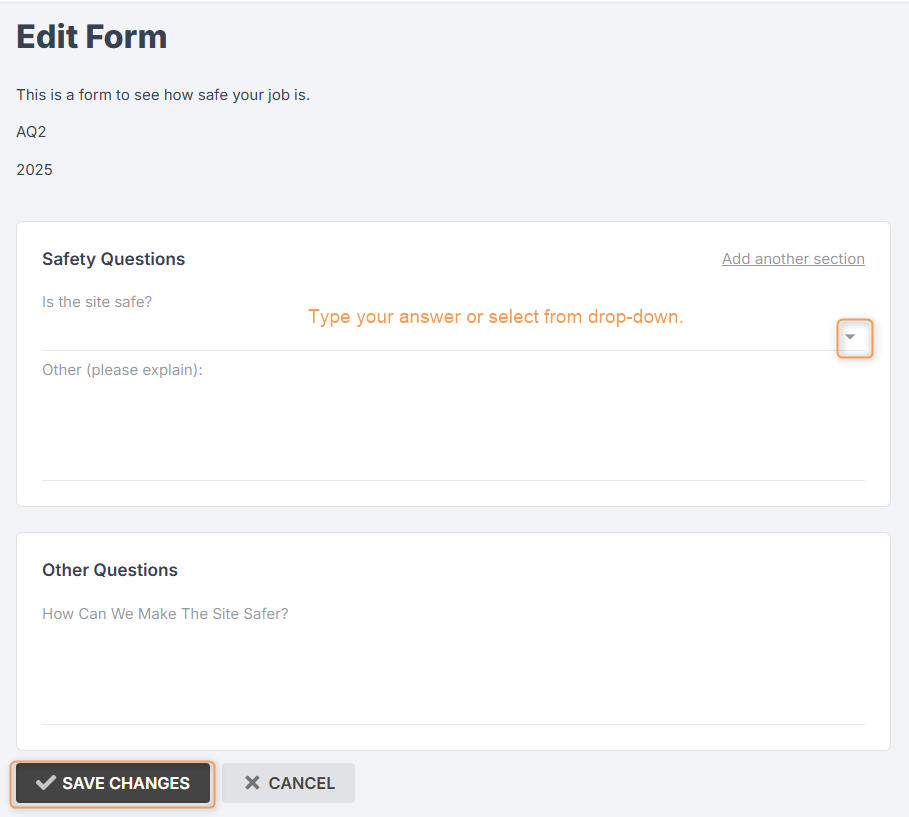
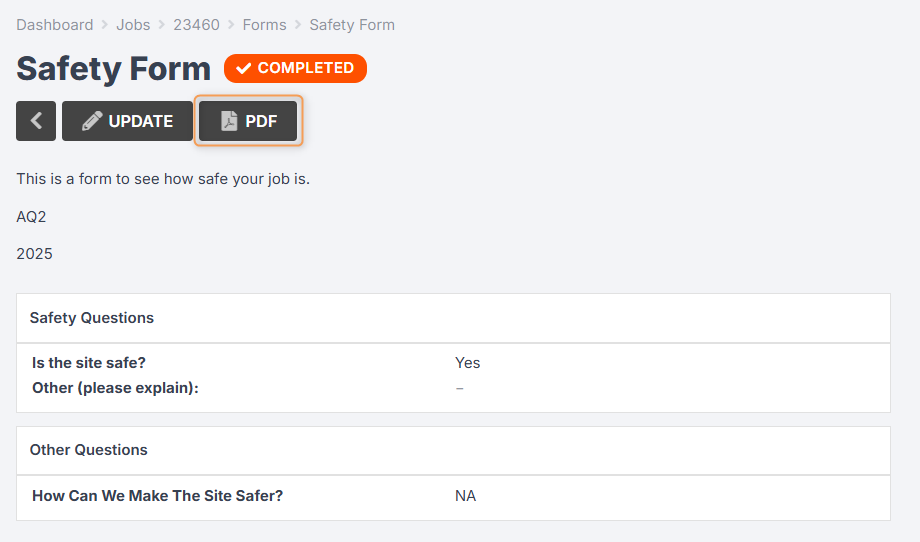
Your answers will now show on the form, and it will be marked Complete.
You can also click PDF to export the form to PDF for printing:
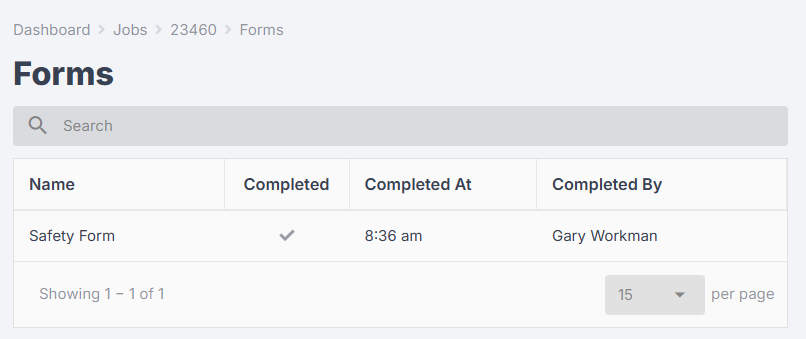
Completed forms will show the name of the person who completed them, and the time at which they were completed:
Checking and Creating Job Notes
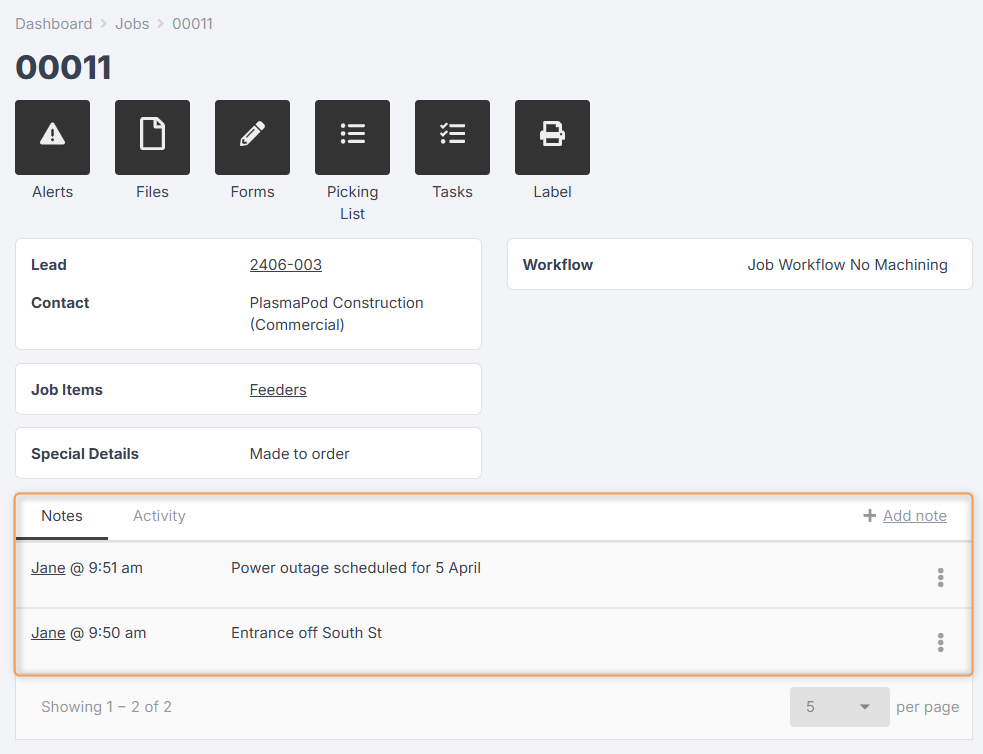
When you click into a job from the Jobs Tab, you can view any job notes at the bottom of the screen:
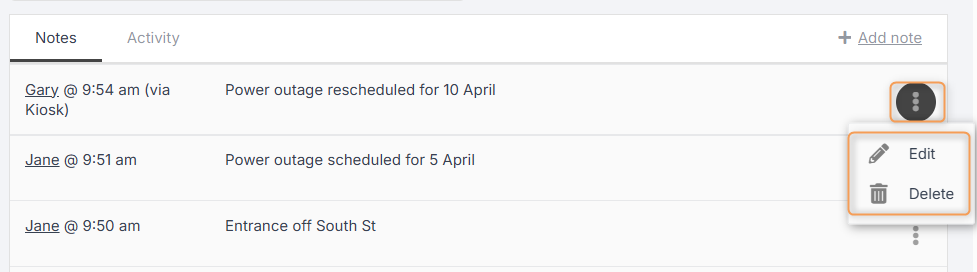
Click Add Note to type a new note, or click the three-dot menu next to a note to Edit or Delete it. (You can only do this if you have the relevant staff permissions.)
Alerts, Files, and Tasks
When you click into a job from the Jobs Tab, you can click the Alerts, Files, or Tasks buttons to view, create, and update any of these.
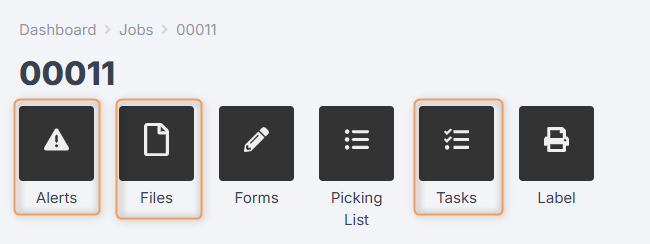
Please see previous lessons for more information on job alerts, files, and tasks.