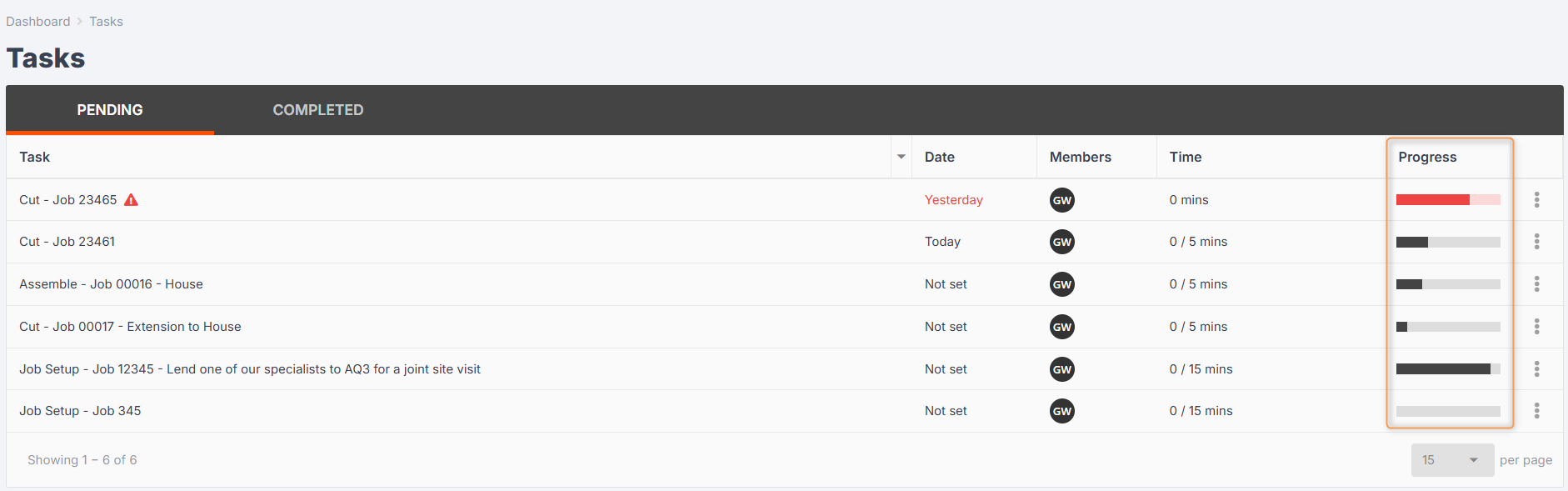
Back to: Kiosk Users
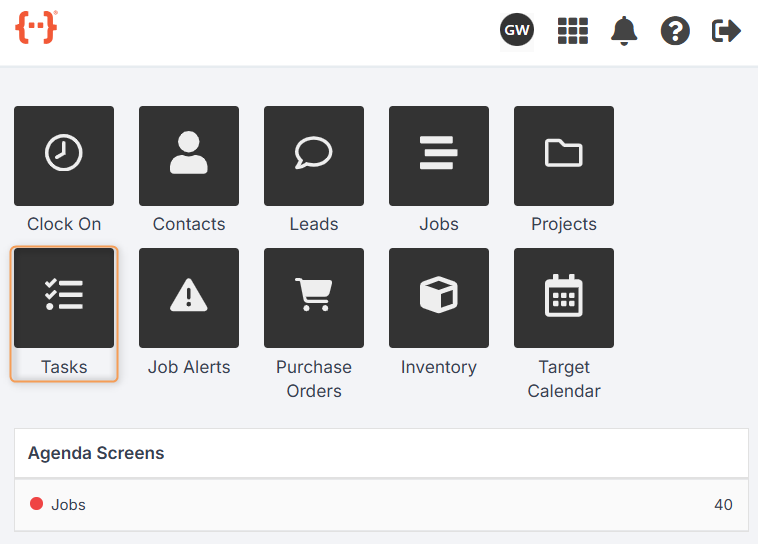
From the Kiosk Dashboard, press Tasks to go to the Tasks Tab:
The Tasks Tab looks like this:
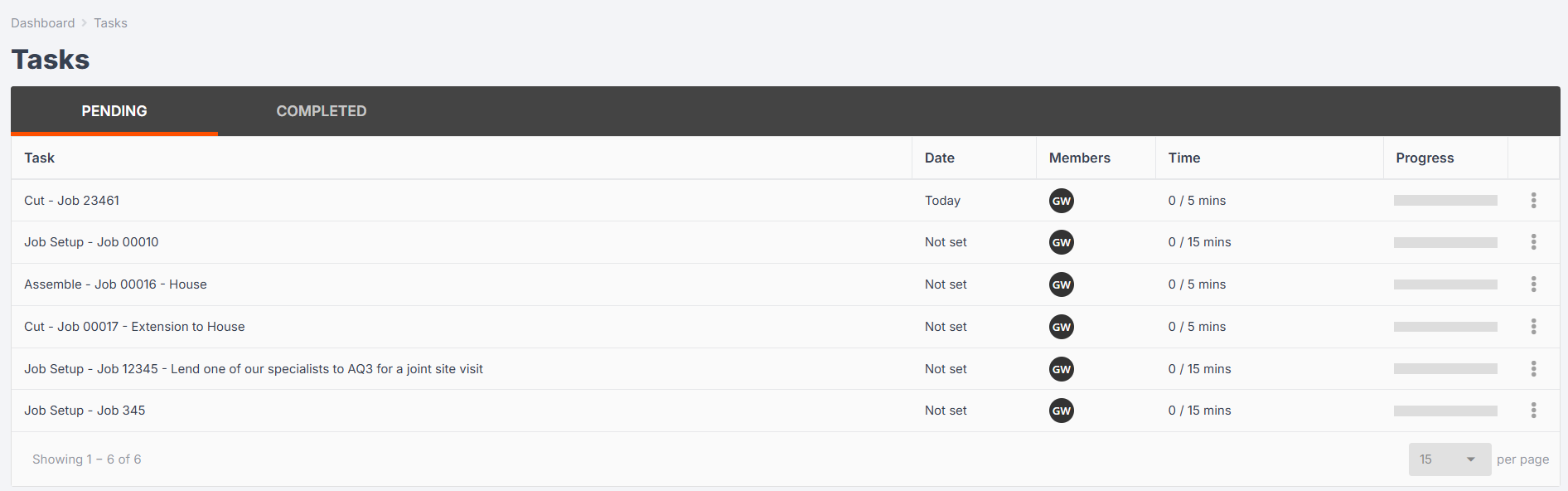
As with agenda screens, you can control how the columns in the Tasks Tab are displayed. (See previous lesson.)
Pending shows you a list of tasks you have been assigned to complete.
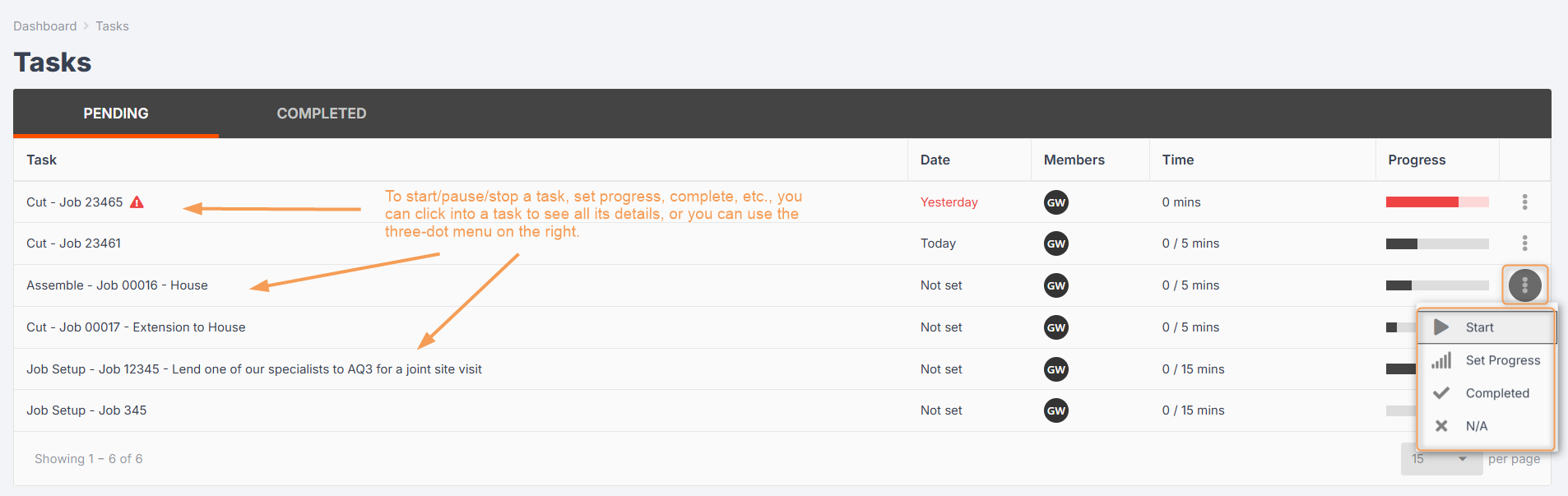
You can click on a task to open a pop-up with its information, or click the three-dot menu next to a task to start it, set progress, create an alert, etc. (See previous lesson.)
If you click on Completed, this will show you all the tasks that were assigned to you and have been completed.

Using Progress Accurately
If you have paused or stopped work on a task, especially if the task is likely to go over several days, make sure to click into the task and use Set Progress to show an accurate representation of where the task is up to.
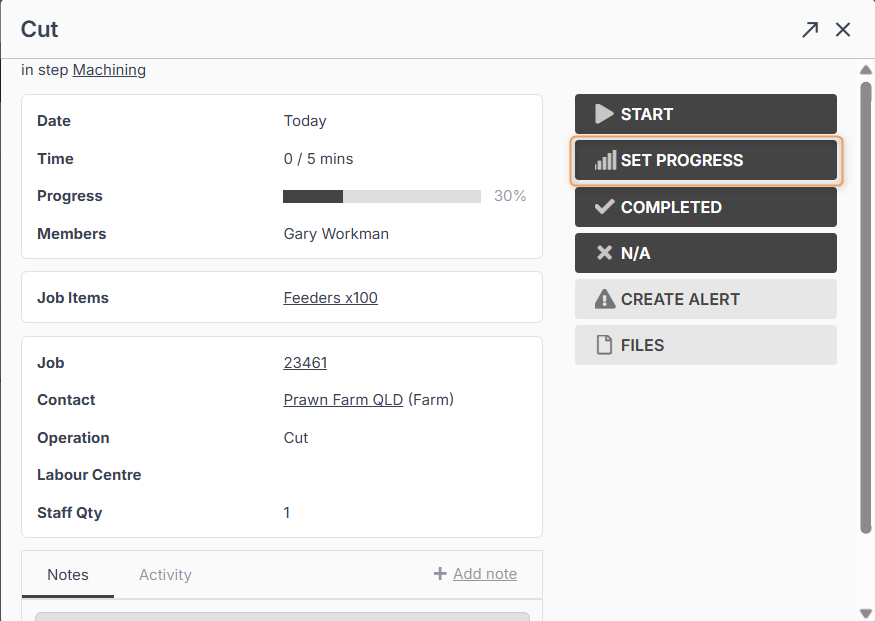
Simply click and drag the progress bar and click Save Changes:
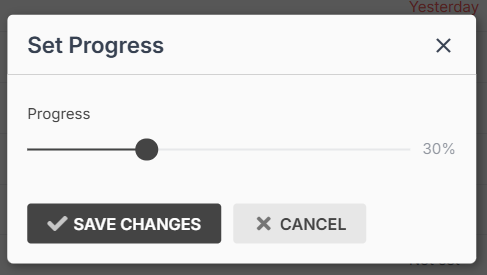
This will then show in the Tasks Tab so the whole team can get an accurate idea of where the job is up to.