




Back to: Kiosk Users
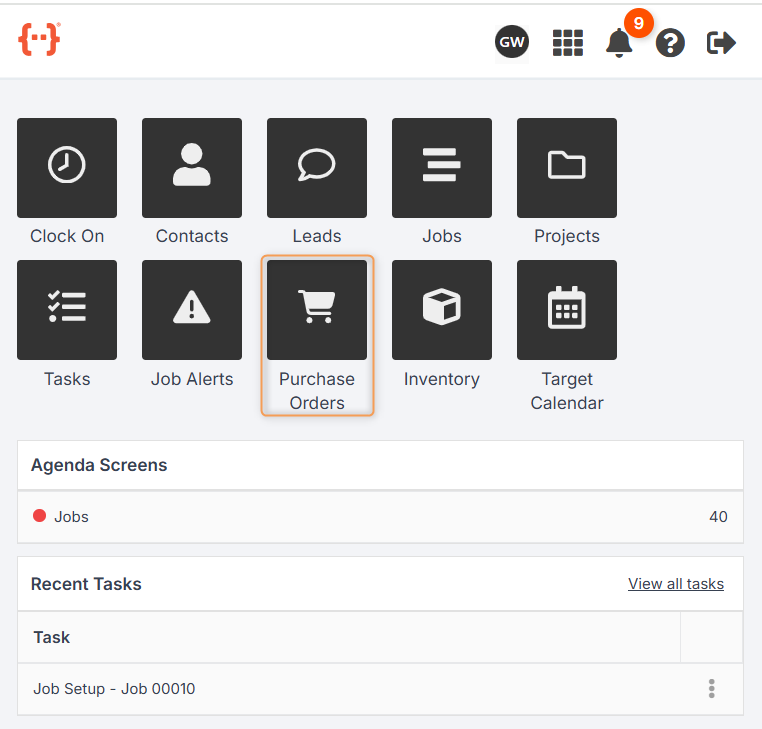
From the Kiosk Dashboard, press Purchase Orders to go to the Purchase Orders Tab:
The Purchase Orders Tab looks like this:
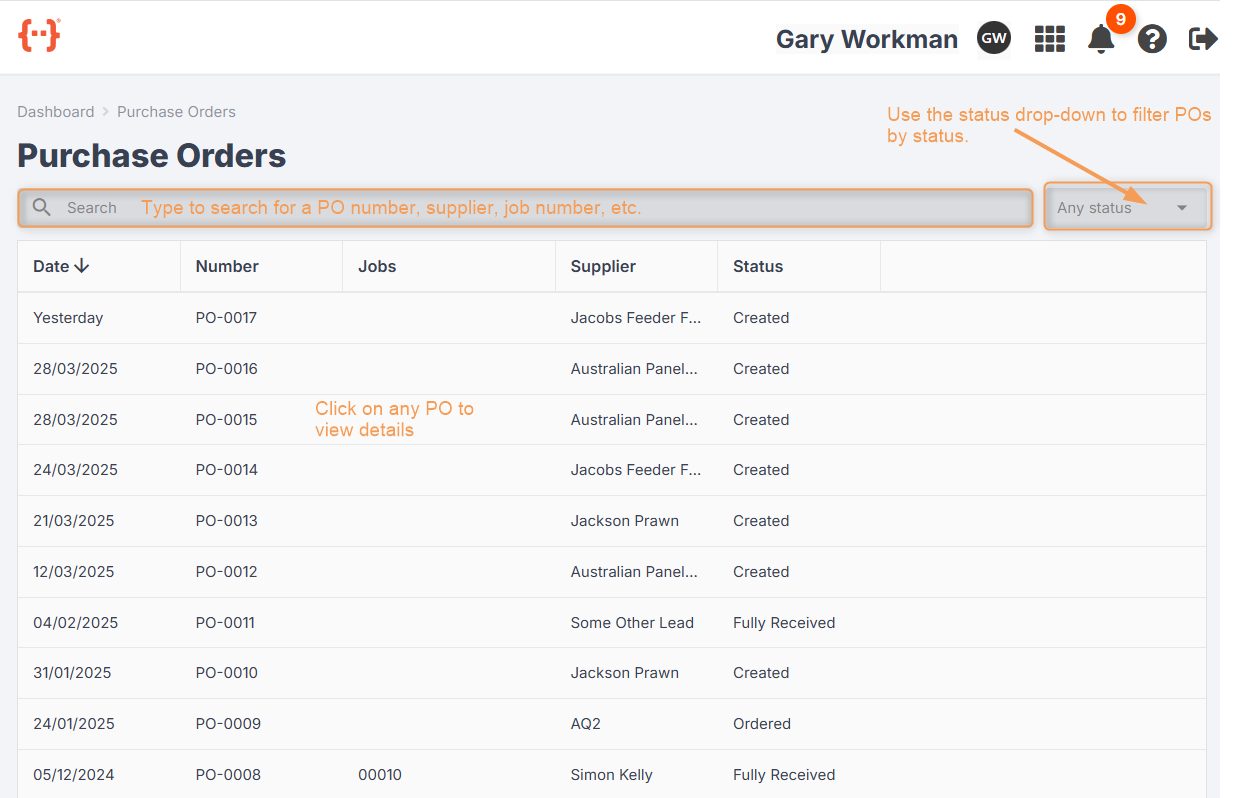
- Use the Search bar to look for a specific PO number.
- Use the Status drop-down to filter your POs for any combination of statuses.
- As with your agenda screens, you can control how the columns in the Purchase Orders Tab are displayed. (See previous lesson.)
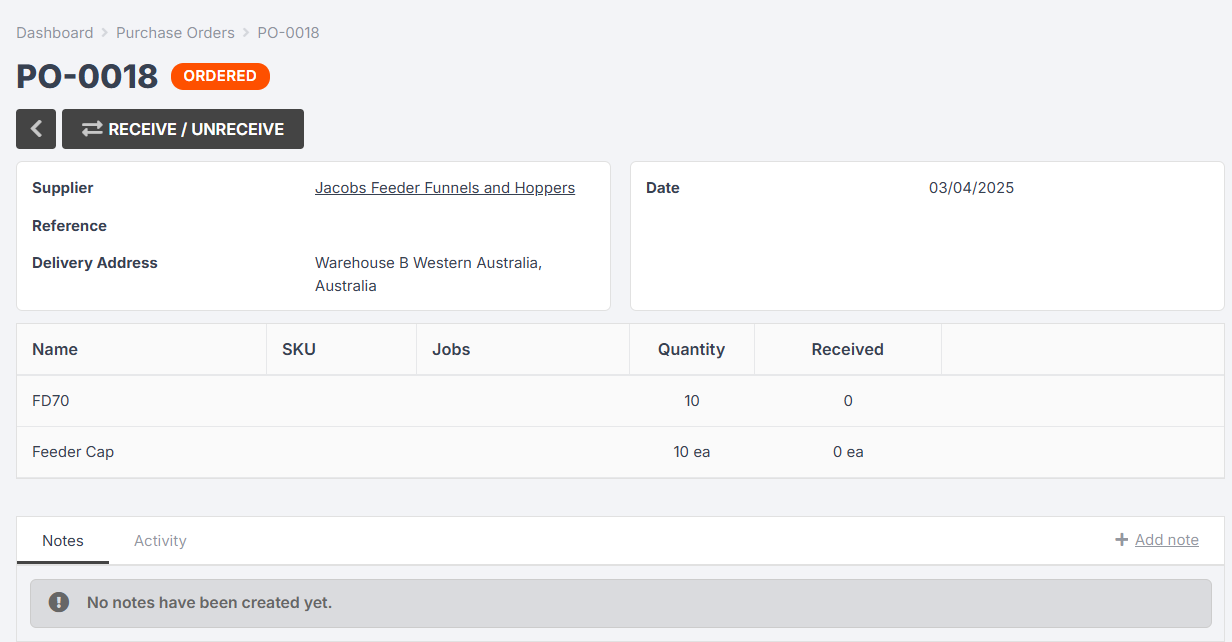
- Click on a PO to see more information:
Receiving PO Items
When goods arrive at your factory/warehouse, you will need to mark them as received in Jobman.
If a PO is in the Ordered or Partially Received status, you can click into it to receive some or all of the PO items.
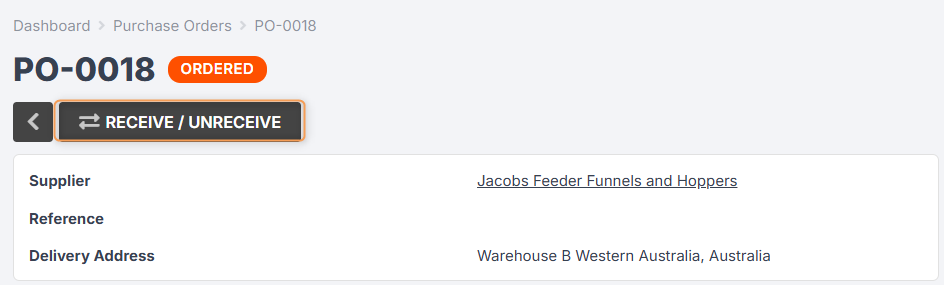
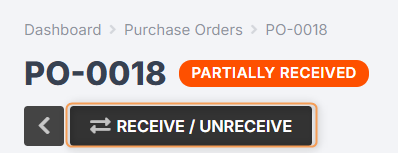
Click Receive / Unreceive:
Use the tick boxes or type in the quantity cells to receive the correct number of items, then click Receive:
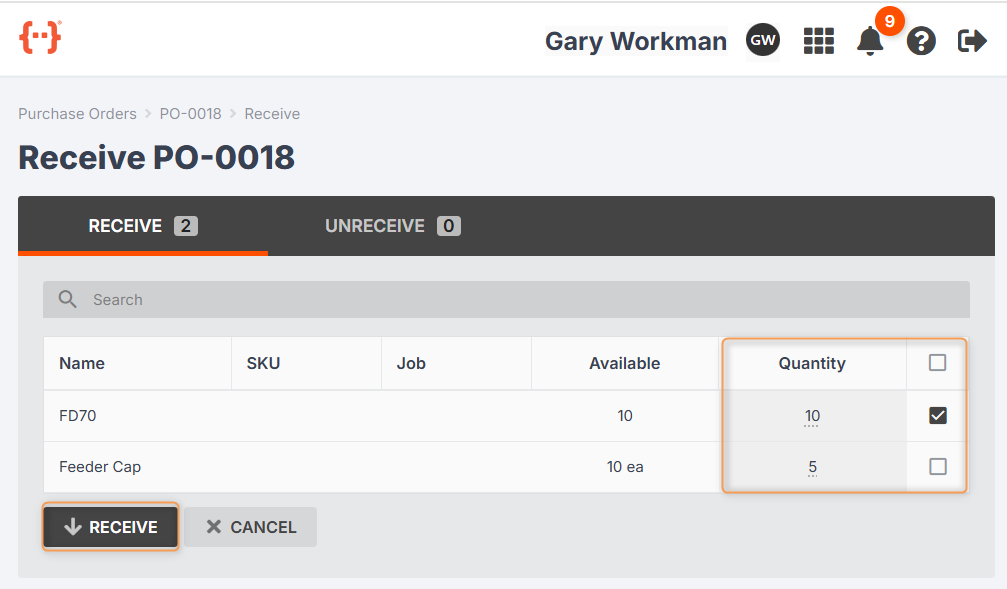
If you have received all items on a PO, the status will update to Fully Received. If you have only received some of the items, the status will update to Partially Received.
Unreceiving PO Items
If you have mistakenly received items on a PO, you can easily undo this by clicking into the PO and pressing Receive / Unreceive:
Use the tick boxes or type in the quantity cells to unreceive the correct number of items, then click Unreceive:
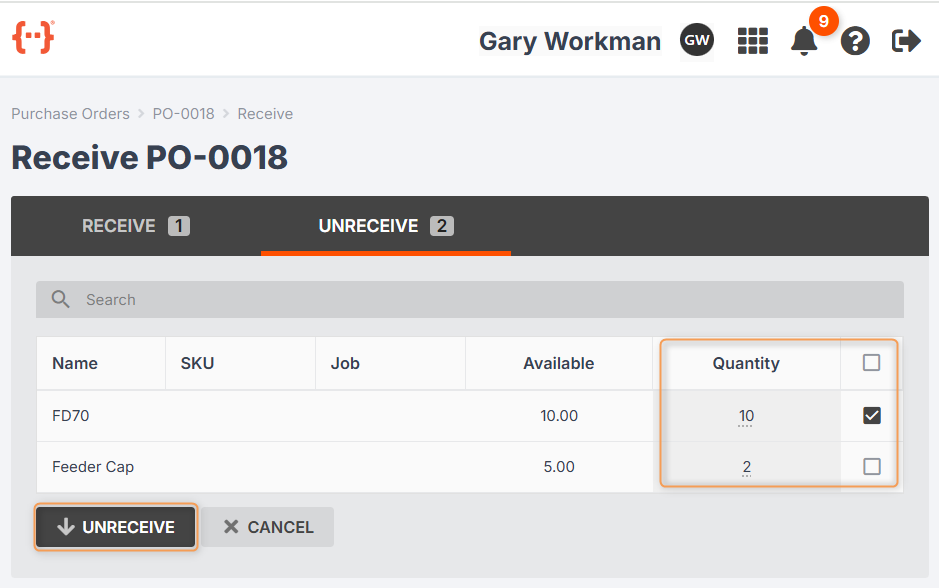
The PO status will then update to Partially Received.