Back to: Kiosk Users
Important: You must complete the section “General Kiosk User” before beginning this section.
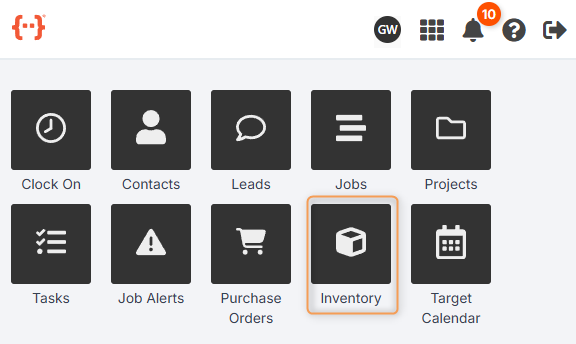
From the Kiosk Dashboard, press Inventory to go to the Inventory Tab:
The Inventory Tab looks like this:
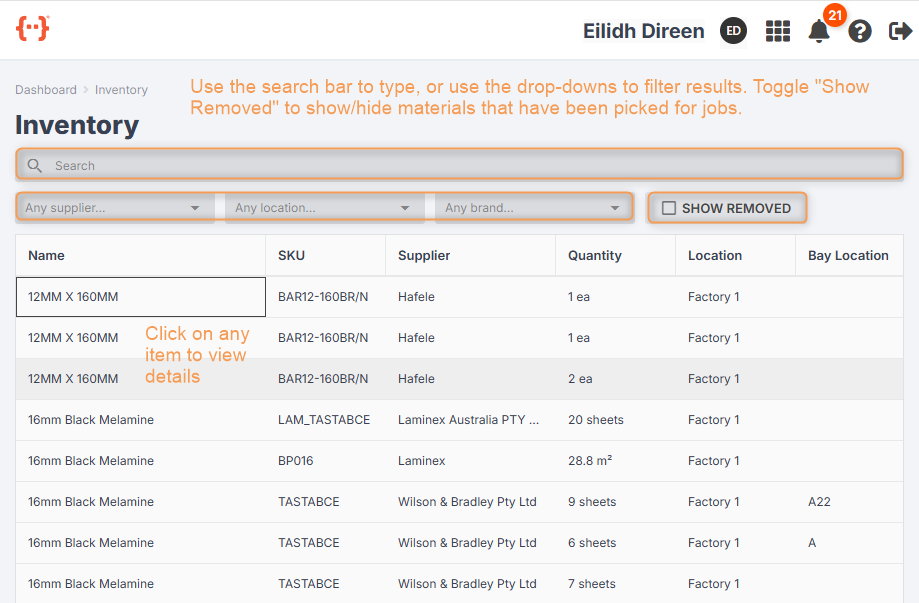
- Use the Search bar to look for a specific inventory item.
- Use the Supplier, Location and Brand drop-downs to filter results.
- Use the Show Removed checkbox to toggle whether you can see inventory items that have been picked for jobs.
- You can control the columns display in the Inventory Tab. (See General Kiosk User > Using Your Agenda Screen.)
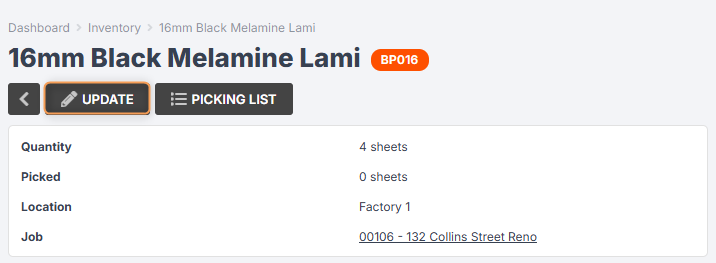
- Click into an inventory item to view details:
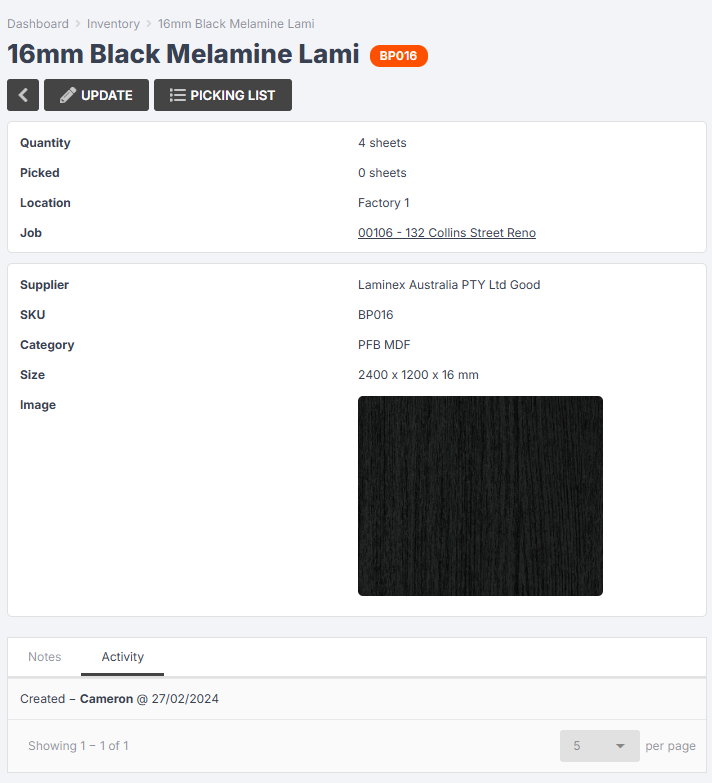
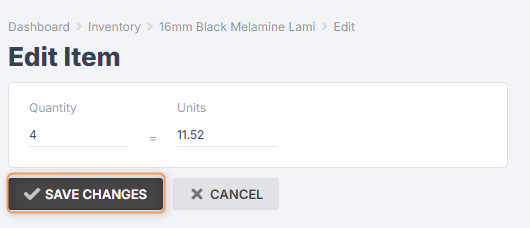
Press Update to change the quantity of items.
Type the new number and Save Changes:
If the inventory item has been allocated to a job, you will see the Picking List button.
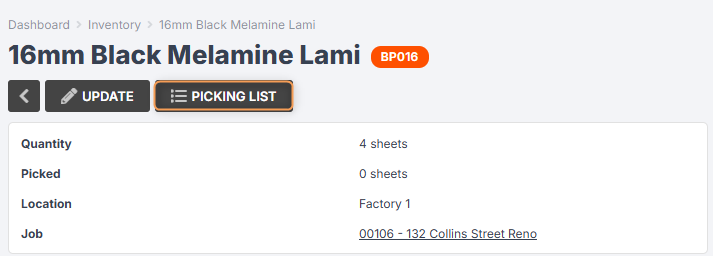
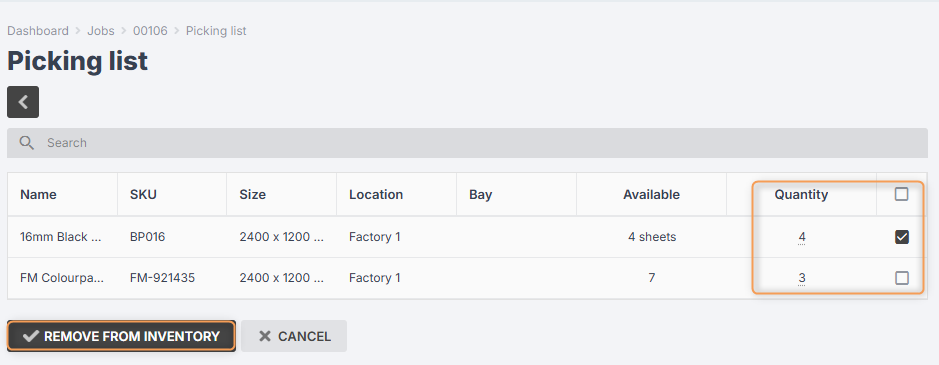
Press this to view the picking list for the job:
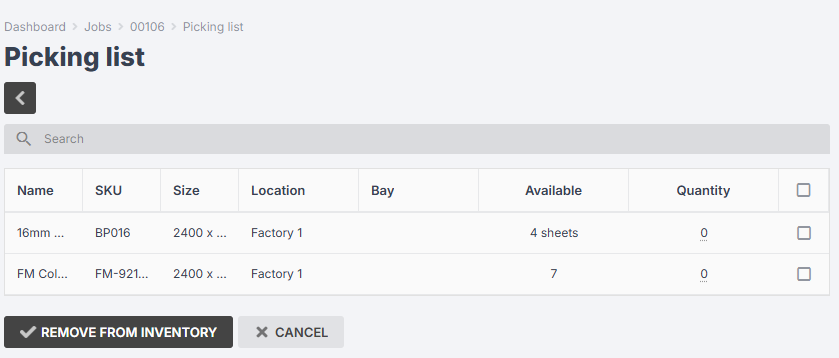
If any items have been picked, use the tick boxes to select them or type in the quantity cells and click Remove from Inventory:
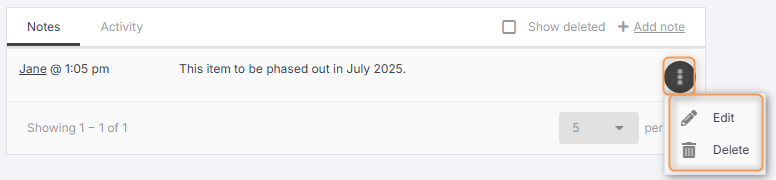
View any Notes underneath an inventory material. Click Add Note to type a new note, or click the three-dot menu next to a note to Edit or Delete it. (You can only do this if you have the relevant staff permissions.)