Back to: Kiosk Users
What do I See On My Dashboard?
The icons you can see on your Kiosk Dashboard will vary depending on your staff permissions.

Clicking on any of these icons will take you to the relevant tab inside the Kiosk. We will cover each of these in more detail later.
Agenda Screens: Your Number One Focus!
Beneath your icons, you will see one or more agenda screens, depending on how many your manager has made you a member of:
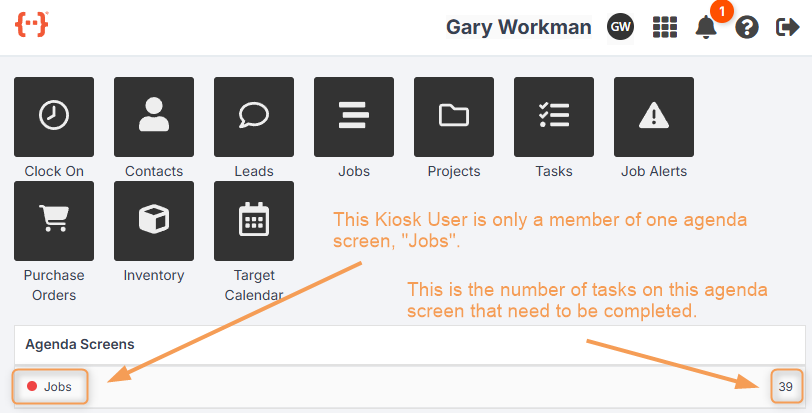
Your agenda screen is a to-do list of all the tasks needing to be completed by you, and any other members assigned to that screen. Your agenda screens should be your number one focus when using Jobman. Always check your agenda screen to see which task you need to complete next!
Notifications
At the top-right of your screen, you can see the notification icon, which will have an orange number next to it if you have one or more unread notifications:
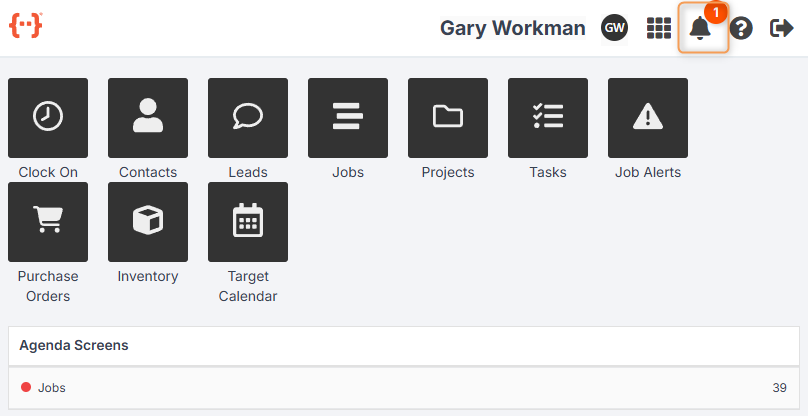
Click on the notification icon to read your notifications:


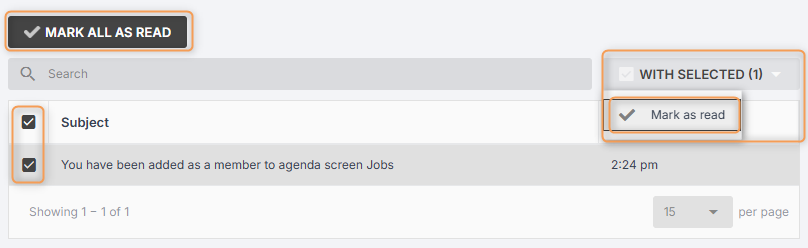
You can use the Mark All As Read button to mark all unread notifications as “read”. Or, you can use the tick boxes to select one or more notifications, and then click With Selected > Mark As Read:
When all your notifications are marked “read”, the orange and red dots will disappear from your screen:
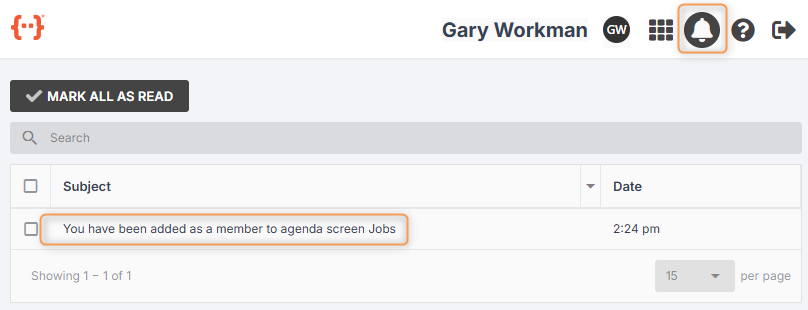
Notifications are used to draw your attention to important events, e.g. “You have been assigned to a task,” or “Damaged part – Job #0075”, so make sure to check your notifications throughout the day!
What Do the Icons at the Top-Right Mean?
 |
Profile Icon:
Click here to view your profile |
 |
Home Icon:
Click here to return to the Dashboard |
 |
Notification Icon:
Click here to view your notifications |
 |
Help Icon
Click here to access in-app help |
 |
Log Out Icon:
Click here to return to the Kiosk login screen |
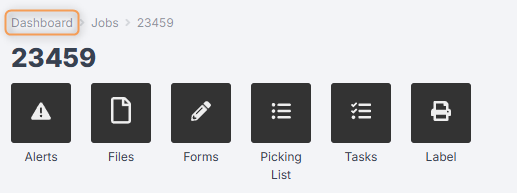
Returning to the Dashboard
You can return to your Kiosk Dashboard at any time by clicking the Home Icon (see above), or by clicking Dashboard in the navigation links at the top-left of the screen: