Skip to content
Jobman AcademyJobman Academy
  • Academy
  • My Account
Jobman AcademyJobman Academy
  • Academy
  • My Account

Job Alerts Tab

Home » Job Alerts Tab
Breadcrumb Abstract Shape

Job Alerts Tab

  • April 3, 2025
  • Com 0

Back to: Kiosk Users

0

Important: You must complete the “General Kiosk User” section before beginning this section.

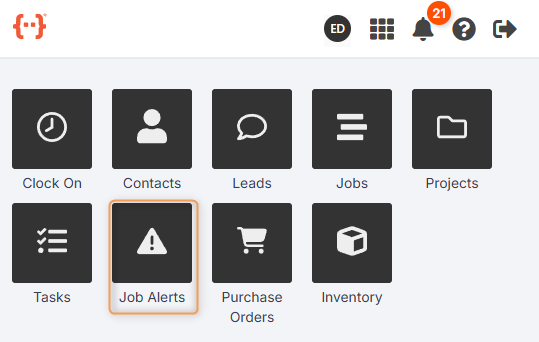
From the Kiosk Dashboard, press Job Alerts to go to the Job Alerts Tab:
The Job Alerts Tab looks like this:
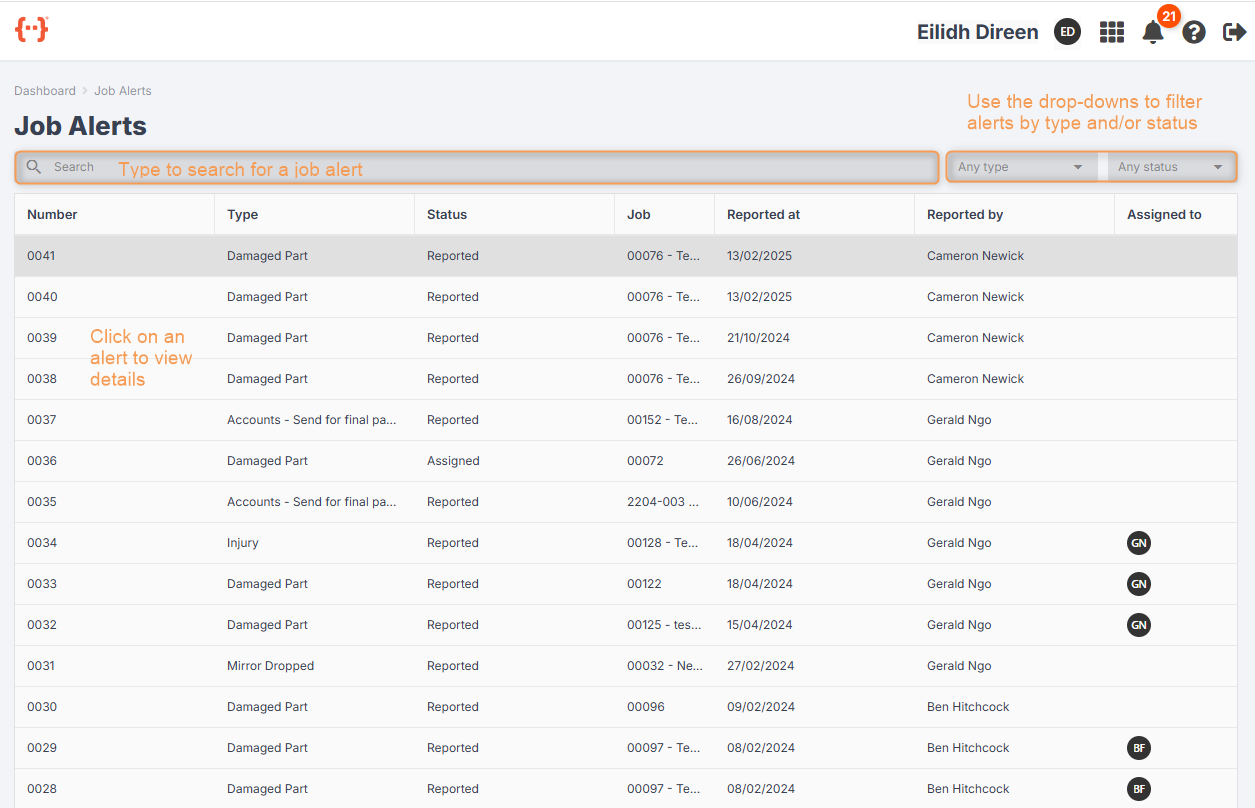
  • Use the Search bar to look for specific job alerts.
  • Use the Type and Status drop-downs to filter for a specific combination of job alert types and statuses.
  • You can control the columns display in the Job Alerts Tab. (See General Kiosk User > Using Your Agenda Screen.)
  • Click into a job alert to view its details:
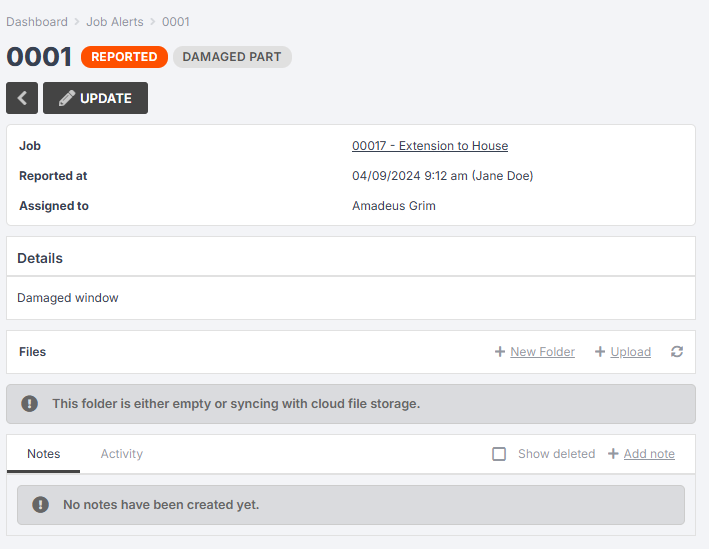
From the job alert, you can click on the orange status button to update it:
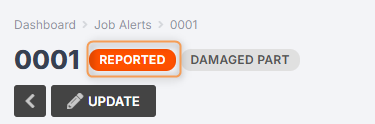
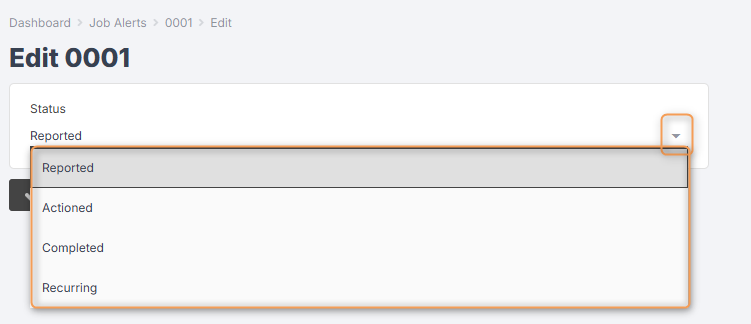
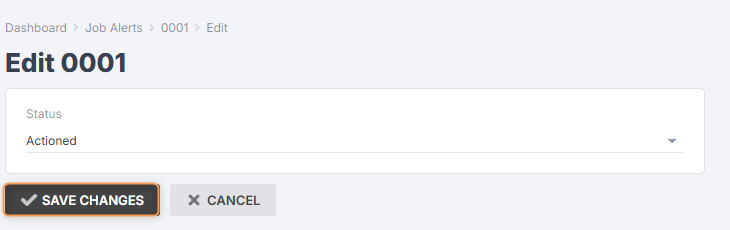
Select the new status from the drop-down and click Save Changes:
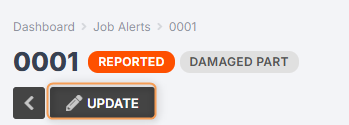
Click Update to edit the job alert details:
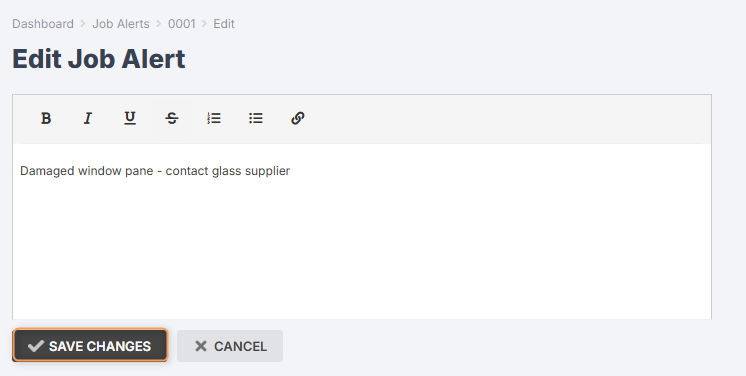
Type the relevant information and click Save Changes:
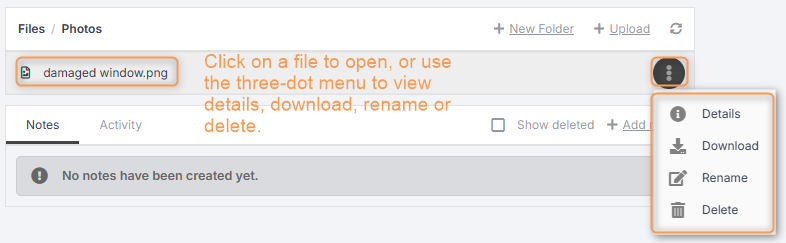
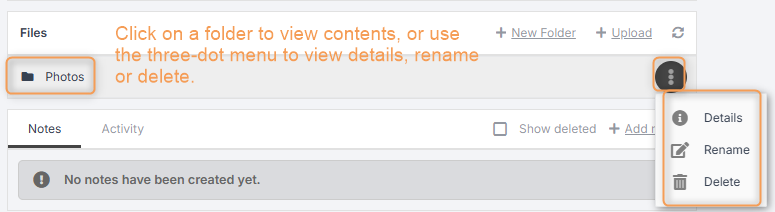
You can view and add folders/files, e.g. photos:

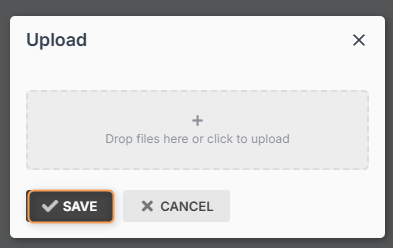
Upload files:
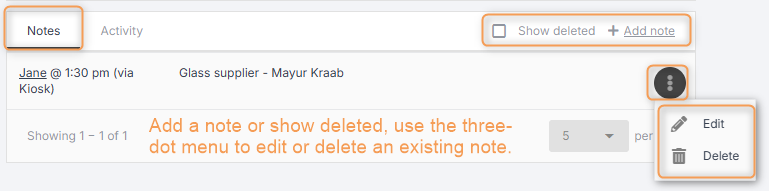
You can also view and add job alert notes:
Previous Lesson
Inventory Tab
Lesson 1 within section Storeperson Kiosk User.
Next Lesson
Target Calendar Tab
Lesson 2 within section Factory Floor Manager Kiosk User.

Course Syllabus

  • General Kiosk User
    • Kiosk Mode Link
    • Clocking On and Off
    • Dashboard
    • Using Your Agenda Screen
    • Jobs Tab
    • Tasks Tab
    • Purchase Orders Tab
  • Sales Team Kiosk User
    • Contacts Tab
    • Leads Tab
  • Storeperson Kiosk User
    • Inventory Tab
  • Factory Floor Manager Kiosk User
    • Job Alerts Tab
    • Target Calendar Tab
Copyright 2025 Jobman Pty Ltd. All rights reserved.
Jobman AcademyJobman Academy
Sign inSign up

Sign in

Don’t have an account? Sign up
Lost your password?

Sign up

Already have an account? Sign in