Back to: Kiosk Users
Important: For Kiosk users, the target calendar is READ-ONLY.
To make changes to target calendar entries, you will need to have an office license.
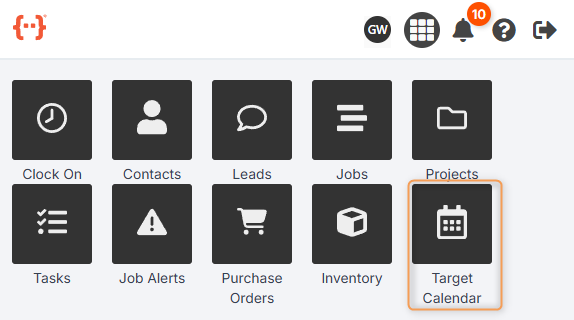
From the Kiosk Dashboard, press Target Calendar to go to the Target Calendar Tab:
The Target Calendar Tab looks like this:
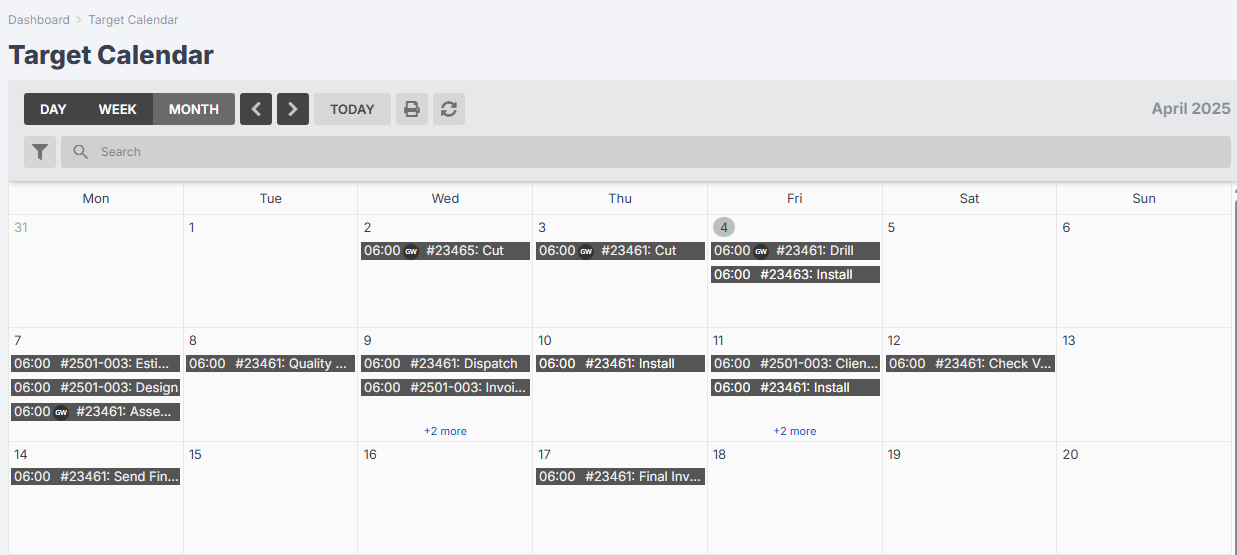
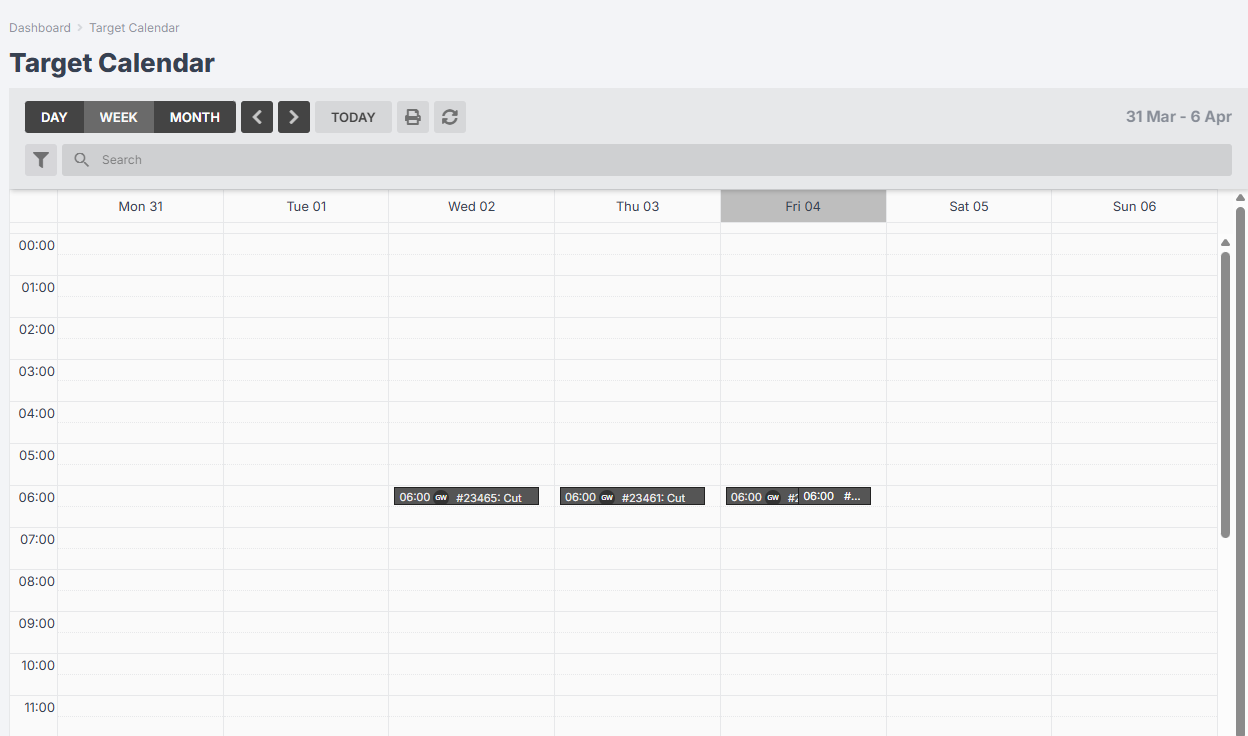
The default display is Month view. Use the Day / Week / Month buttons to toggle the view:

Week View
Day View
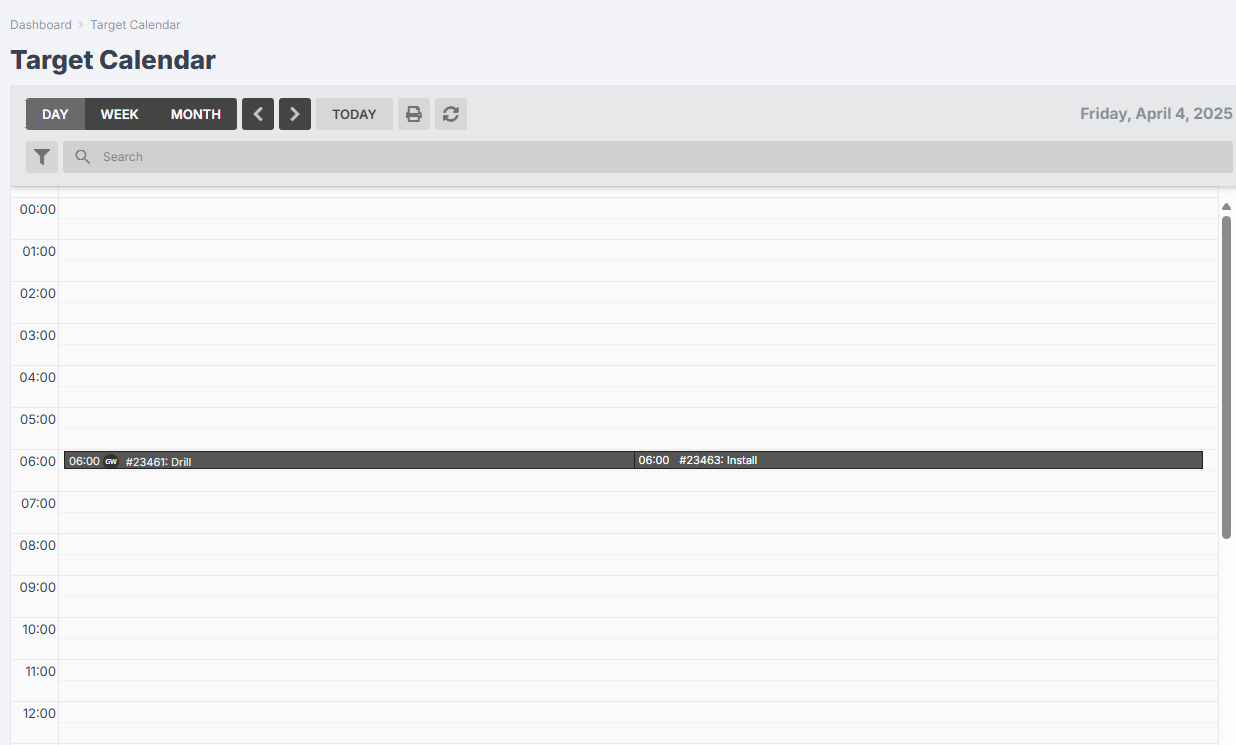
Use the arrow buttons to go forwards/backwards from day to day, or week to week, or month to month:

Press Today to return to today’s date:

Use the Search bar to look for specific calendar entries:

Use the Print icon to export the calendar to PDF:

Use the Filter icon to refine your calendar display:

- Use a filter preset to run a pre-established search of your calendar (read more).
- Use the Item drop-down to select Jobs, Leads, or Projects and then open a new series of drop-downs to filter by statuses, types, members, member types, task operations or task members.
- Use the Task Members drop-down to select one or more individual staff and show only tasks that they are members of.
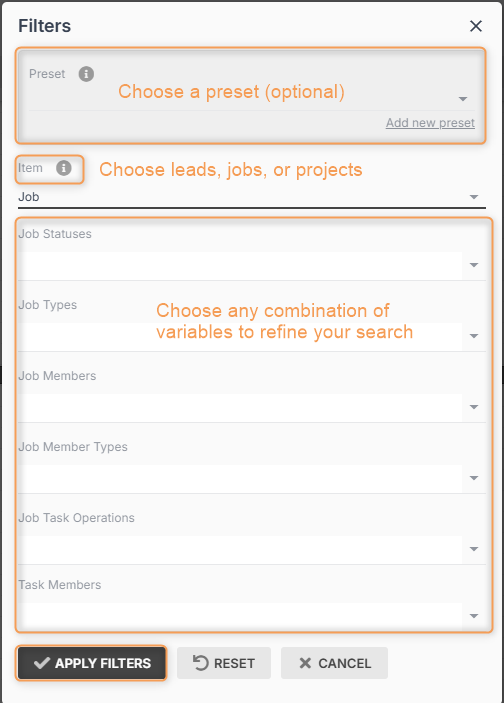
When you have chosen your filters, press Apply Filters.
Your target calendar will remember your filter preferences the next time you view it. You can press Reset to view the target calendar without any filters:
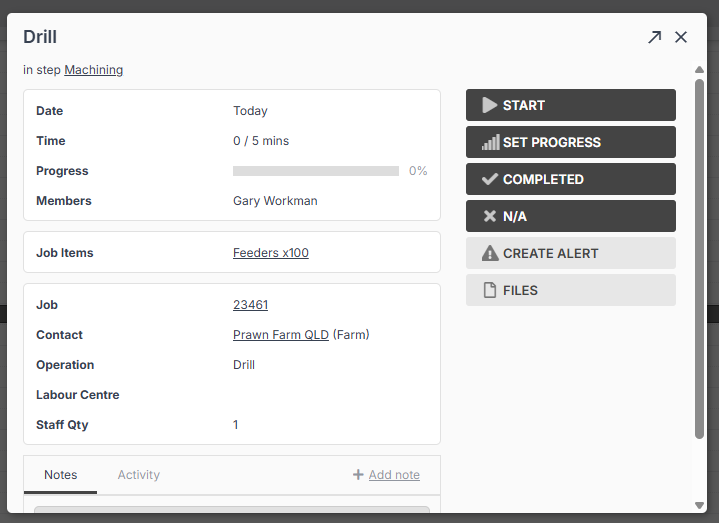
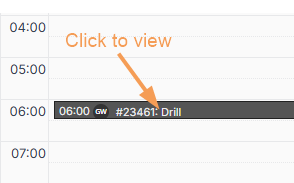
Click on a task in the target calendar for an overview of its details:
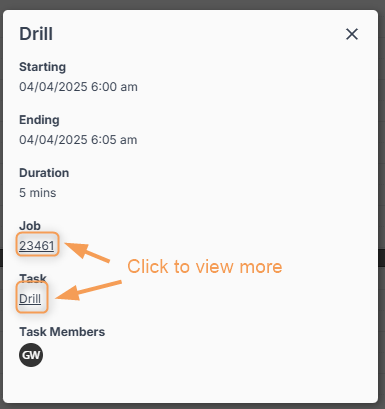
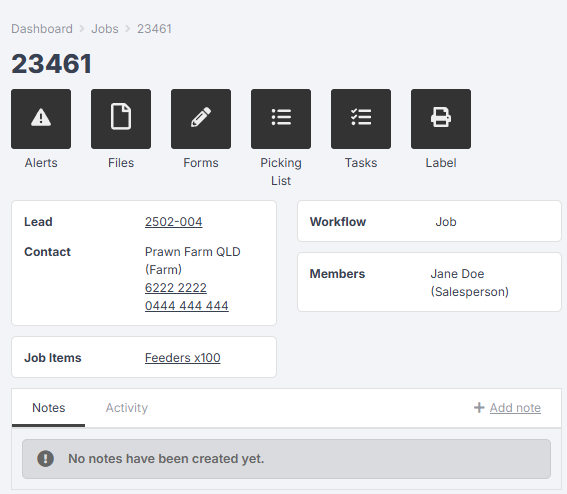
From this pop-up, click the job hyperlink to view the job inside the Jobs Tab:
Or click the task hyperlink to view full details: