




Back to: Complete Jobman Set-Up Guide for Administrators
Once you’ve created and sent a quote, you may wish to copy it (if you need to create a similar quote quickly) or revise it.
How to Copy a Quote
You can make a copy of a created quote and send to either the same lead or a different lead. This is useful when you have a standard product that you quote for consistently, or when you want to re-send a quote but with minor adjustments.
To copy a quote, use the 3-dot menu dropdown as shown below:

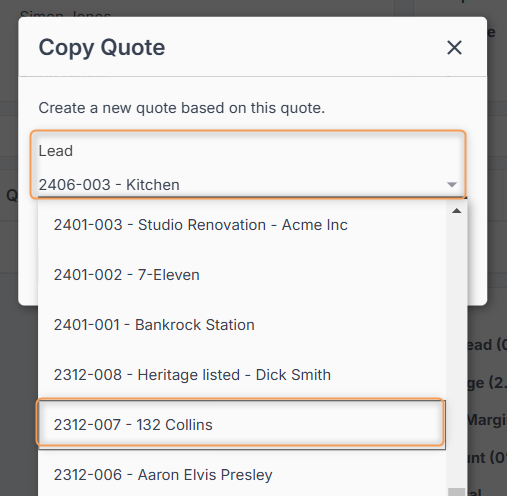
You can then use the Lead drop-down to select either the original lead or a new one:
Creating a Variation
Variations allow for you to make additional quotes once a job has been started and link these quotes to the job to update job values, operational times, material handling and visibility.
Important: You can only create variations for jobs that have been generated from a lead. Jobs that have been created from the Jobs tab will not allow creation of variations.
To create a variation, follow these steps:
- Click into your job, and navigate to the Info tab.
- At the top of tab, you will see the Lead info:

- Click on the lead number. This will redirect you to the lead.
- Click New > Quote:

- Complete your normal quoting process, and set the quote status to Accepted.
- Click into your job again, and navigate to Resources > Quotes.
- Click Add, and select the quote you just created:

- Job values and operation times/materials will automatically update to reflect the additional quote.
Important: Simply revising or refreshing a quote that is attached to a job WILL NOT create a variation or amend values. This ensures complete transparency regarding any changes made during the life cycle of the job.
Tip: You can create a variation just for a work order. Follow the above process but choose Add > Quote inside the work order rather than the parent job.

How to Revise a Quote
When a quote has been accepted, but you or the client wants to make revisions, you can do so by following these steps:
- Click into the quote you want to revise. Note: The quote status must either be superseded or accepted.
- Click New Revision, then Create.
- You will be taken to a new page to revise your quote.
In the example below, you will see that the quote number has changed to 2311-001/02. The number at the end will continue increasing with each revision.


Note: You can see all the different versions of a quote in Leads > [Lead #] > Dashboard or Leads > [Lead #] > Resources > Quotes.
Please Note: If you create a revision after a job has already been generated, this will NOT update your job values. We do not recommend adding a revised quote to a created job, as this will add together the total values of all quote versions, resulting in inflated job values.