




Skip to content
Jobman AcademyJobman Academy
  • Academy
  • My Account
Jobman AcademyJobman Academy
  • Academy
  • My Account

How to Log Staff Leave, Public Holidays, and Temporary Business Shutdowns

Home » How to Log Staff Leave, Public Holidays, and Temporary Business Shutdowns
Breadcrumb Abstract Shape

How to Log Staff Leave, Public Holidays, and Temporary Business Shutdowns

  • February 21, 2025
  • Com 0

Back to: Complete Jobman Set-Up Guide for Administrators

0

Creating Internal Jobs for Staff Leave

To create an internal job for staff leave, follow these steps:

  1. Go to Settings > Operations > Create and create an operation for each of your staff leave types. Make sure to select the appropriate leave type when creating the operation:
  2. Go to Jobs > Create and create a new job. Make sure to use your own organisation as the contact, and use or create a job type called “Internal”.
  3. In your new job, go to Tasks and create a number of Steps, Statuses and Tasks relevant to each of your staff leave types. Make sure to link each task to the correct operation. For example:
  4. Make sure that all tasks are set to “Requires None”, and that no target dates are set for any tasks.

When a staff member applies for leave, they can enter their leave into their timesheet under the correct job and task. 

Note: This can only be done by an office user, so when your kiosk users apply for leave, they will have to notify a relevant administrator in your organisation, who can make the timesheet entry on their behalf.

Public Holidays

Factor public holidays into your scheduling by creating public holiday groups. A public holiday group is a collection of public holidays that can be assigned to staff members and labour centres.

First, go to Settings > Staff > Public Holiday Groups.

If you can’t see Public Holiday Groups under Settings > Staff, make sure that your staff role has permissions to View staff holiday group settings and Update staff holiday group settings.

If you selected a region when setting up your organisation in Jobman, you will already have a default public holiday group set up for you.

You can manually add public holidays to your chosen public holiday group. However, if you choose a region when you create or edit a public holiday group, the standard public holidays for that region will be automatically added to your software and kept up to date.

  • For staff members that belong to a public holiday group, their Pay Rate will factor in the public holidays within that group.
  • For labour centres that belong to a public holiday group, their Capacity and scheduling will factor in the public holidays within that group.

Setting a public holiday group as the default will automatically apply it to staff members and labour centres unless otherwise specified.

If your organisation operates within multiple regions, you can set up multiple public holiday groups and apply them manually to each staff member and/or labour centre as required.

Creating a Capacity Adjustment

Sometimes you may want to make temporary capacity adjustments, for example if one or more staff are on leave, or if your organisation will be closed for a certain period.

To create a capacity adjustment, follow these steps:

  1. Go to Settings > Labour Centres and click into the labour centre you want to make a capacity adjustment for.
  2. Click Capacity Adjustments:
  3. Click Create.
  4. Name your capacity adjustment, e.g. “Christmas Shutdown” or “Jane Annual Leave”.
  5. Enter a date range.
  6. Enter the new available hours for this period.
  7. Click Create again.

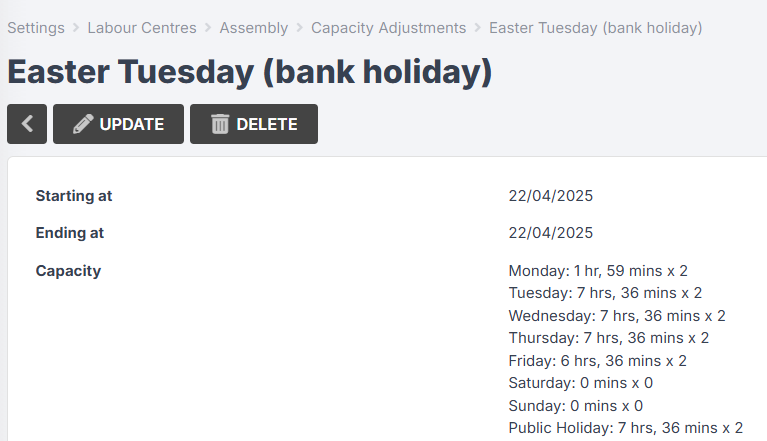
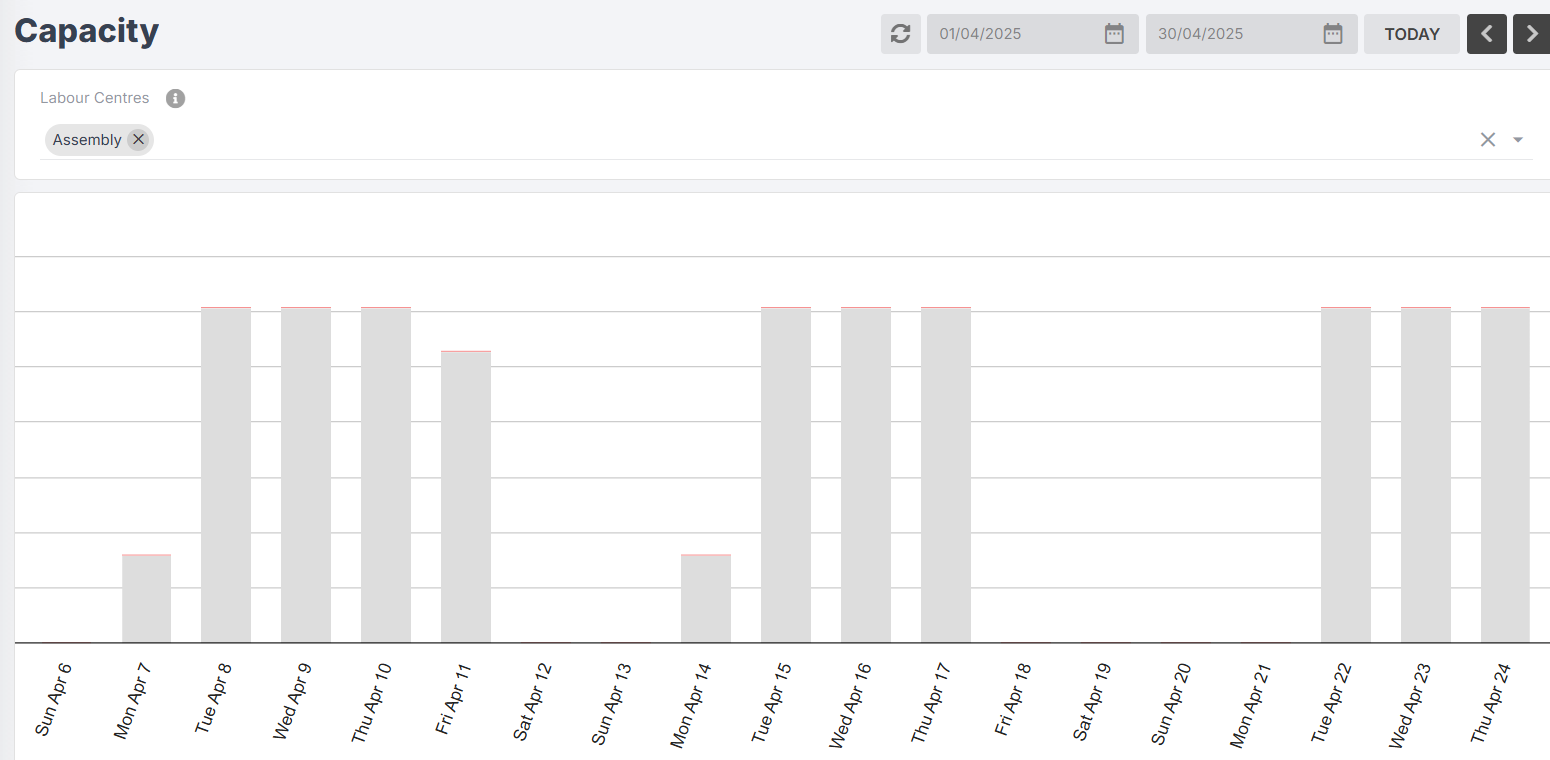
You can also use capacity adjustments to add capacity on dates that are included in your public holiday group but which your staff will be working on, e.g. bank holidays:
Previous Lesson
How to Log Staff Time and Attendance
Lesson 2 within section Payroll Set-Up and Time & Attendance.
Next Lesson
How to Connect Your CAD/CAM Software
Lesson 1 within section CAD/CAM Integration.

Course Syllabus

  • General Navigation and Usability
    • General Navigation
    • User Control and User Settings
    • User Licenses and Staff Types
    • Staff Roles and Permissions
  • Getting Started
    • Connect to Your Cloud File Storage
    • Connect to Your Accounting Software
    • Setting Up Your Staff
    • Setting Up and Managing Staff Login Details
  • CRM Management
    • How to Add Contacts
    • How to Manage Contacts
    • Contact Types, Roles, and Sources
    • Contact Emails and Resources
  • Lead Management
    • What is a Lead?
    • How to Create a Lead Workflow
    • How to Create a Sales Labour Centre
    • How to Create an Agenda Screen for Your Sales Team
    • Lead Settings: Types and Statuses
    • Lead Settings: Details
    • Lead Settings: Members and Member Types
    • Create Lead Item Types and Specifications
    • Automated Triggers in Lead Workflows
    • How to Create a Lead
    • How to Manage and Edit a Lead
  • Job Management
    • How to Create a Job Workflow
    • Automated Triggers in Job Workflows 
    • Job Settings: Types, Statuses, Details, and Members
    • How to Create Labour Centres for Your Jobs
    • How to Create Agenda Screens for Your Jobs and Staff
    • Understanding Your Capacity
    • How to Create a Job
    • How to Manage and Edit a Job
    • How to Create a Work Order from a Job
    • How to Use Your Target Calendar
  • Kiosk
    • How to Set Up Kiosk Staff Working Hours
    • Overview of Kiosk Mode Functions
    • How to Create Agenda Screens for Your Kiosk Staff
    • Staff Member Types and Automated Task Allocation
    • How to Create Activity Screens for Your Staff
  • Quoting
    • The Four Levels of a Jobman Quote
    • How to Build Products
    • How to Create Styles and Range Options
    • How to Build Quote Presets
    • Quote Templates
    • Quote Statuses
    • How to Create and Send a Quote
    • How to Refresh Quote Pricing
    • How to Copy and Revise Quotes
    • How to Create, Send, and Sync Invoices
  • Catalogue Management and Inventory
    • Catalogue Settings
    • Setting Prices and Measurements for Catalogue Materials
    • How to Create and Import Catalogue Materials
    • How to Create Catalogue Services
    • How to Add and Manage Inventory Items (Stock)
    • Price Matrices
  • Purchase Ordering and Inventory Picking
    • How to Create Purchase Order Statuses
    • Managing Job Resource Materials
    • How to Create and Send Purchase Orders
    • How to Manage, Edit, and Receive Purchase Orders
    • Picking List and Inventory
    • How to Set Up Minimum Stock Quantities for Purchase Ordering
    • Supplier Integration – Hafele
    • Supplier Integration – Wilson & Bradley
  • Reporting
    • Reports in Jobman
    • Quote Summary Report
  • Job Alerts and Forms
    • How to Create and Use Job Alerts
    • How to Create and Use Job Forms
  • Payroll Set-Up and Time & Attendance
    • How to Set Up Staff Pay Rates
    • How to Log Staff Time and Attendance
    • How to Log Staff Leave, Public Holidays, and Temporary Business Shutdowns
  • CAD/CAM Integration
    • How to Connect Your CAD/CAM Software
    • Cabinet Vision
    • Mozaik
    • Microvellum
    • Winner Flex
Copyright 2025 Jobman Pty Ltd. All rights reserved.
Jobman AcademyJobman Academy
Sign inSign up

Sign in

Don’t have an account? Sign up
Lost your password?

Sign up

Already have an account? Sign in