Back to: Complete Jobman Set-Up Guide for Administrators
Welcome to Jobman, a versatile ERP (Enterprise Resource Planning) system built for the manufacturing industry. From CRM, to quoting, invoicing, job management, capacity planning, scheduling, purchase ordering, dispatch, install, and reporting, your new system will streamline your manufacturing business in ways you never thought possible.
This course is designed for Jobman Administrators – that is, business owners or managers who have full access to Jobman and are responsible for configuring the software in a way that suits their business.
Each lesson is designed to teach you how to use and set up Jobman in a way that gets your business up and running as quickly and smoothly as possible. Please complete all lessons in the intended order.
Accessing Jobman
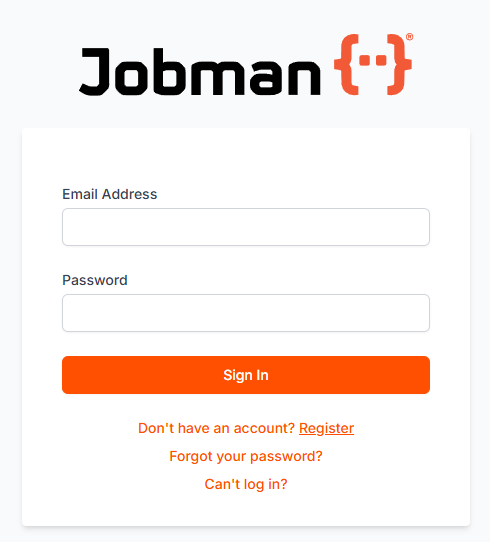
Jobman is a web browser based software product, meaning you access it via Chrome, Firefox, etc. Go to jobmanapp.com to find your login page. We recommend bookmarking this page for ease of access.
Enter your login details to get started!
Choosing Your Organisation
With Jobman, you can have access to multiple organisations. After logging in, you will see a list of your organisations. Click the organisation you would like to access.
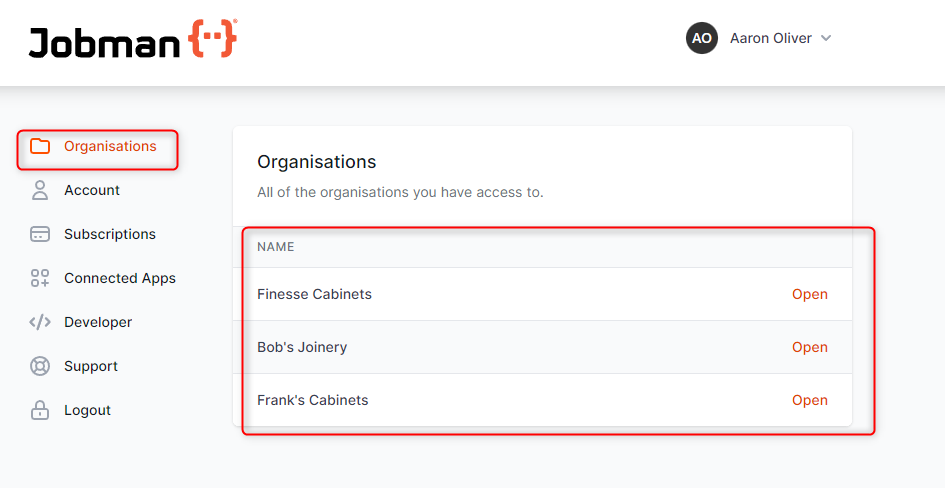
You can change between organisations at any time via the organisation drop-down at the top-left of your main screen.

What if I can’t see my organisation?
- Make sure you’re logged in to the correct account.
- Try logging out and logging back in.
- Clear your browser cache/cookies.
My Jobman
Once you have accessed your organisation, you can click on the organisation name at the top right at any time to access My Jobman:
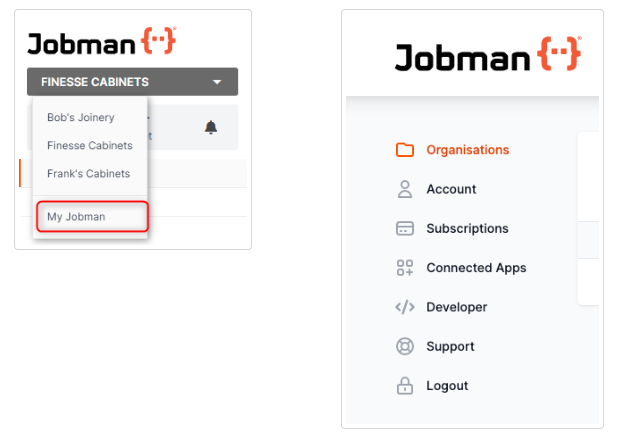
Select Account to update any of the following:
- Personal Details
- Email Address
- Language Settings
- Date Format
- Timezone
- Your Password
Select Organisations to see a list of organisations you are linked to. Click on one of these to open Jobman for that organisation.
Select Subscriptions to see a list of your subscriptions, and to update or cancel a subscription.
Select Connected Apps to see a list of any third-party apps you have linked to Jobman.
Select Developer to:
- View our API documentation
- Generate tokens to access the Jobman API
- Create an app that can be authorised to access Jobman API on behalf of your users
Select Support to access our help documentation. If you can’t find the information you need, you can lodge a support ticket.
Your Staff Profile and User Menu Panel
To access your staff profile, simply click on your name in the User Menu Panel on the left (see below). Here you can view or update your details and password, view your timesheet, notifications, and tasks.
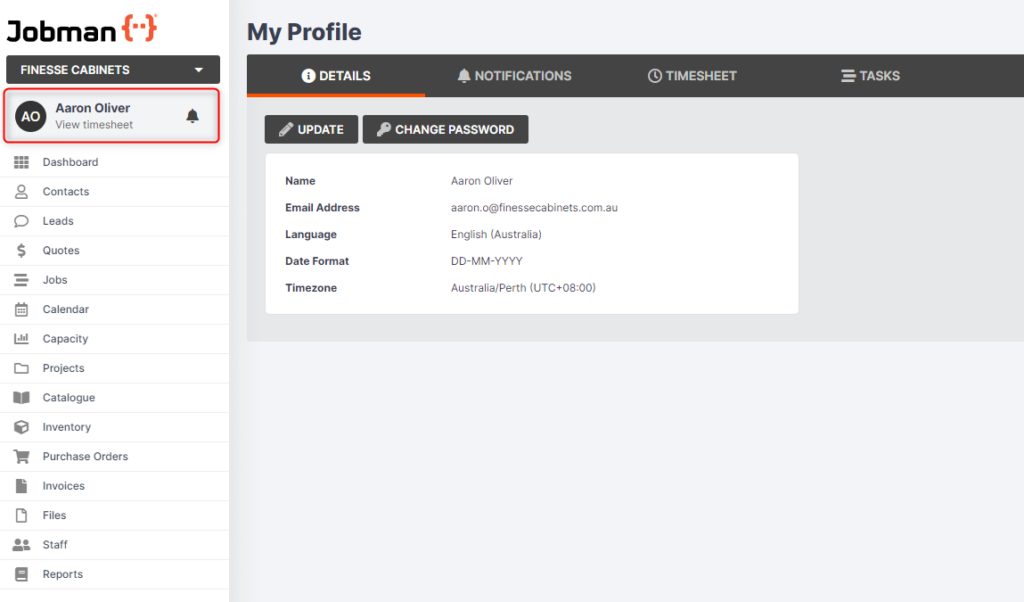
The User Menu Panel is the main navigation tool for the software.
Different staff roles have different levels of access, so not all of your staff will see the same options listed in the menu.
Dashboard
If you have been added to any activity screens or agenda screens, these will appear in your Dashboard. Click into an activity or agenda screen to see further information.
At the bottom of the Dashboard you will also see your Recent Tasks.

Kiosk
Kiosk mode is for your staff who are out on the floor or the road, so they can log their time against jobs from their tablet, phone, or laptop!
Settings
Settings are only available to users who have admin access. Use Settings to configure your Jobman software to suit the needs of your business.
Navigation Tips & Tricks
Customise Your Column Displays
Information in Jobman is often displayed in tables, or grids. There are many options available to customse your column displays in these grids, including sorting by ascending/descending order, adjusting column widths, dragging & dropping to move columns, and showing/hiding individual columns.
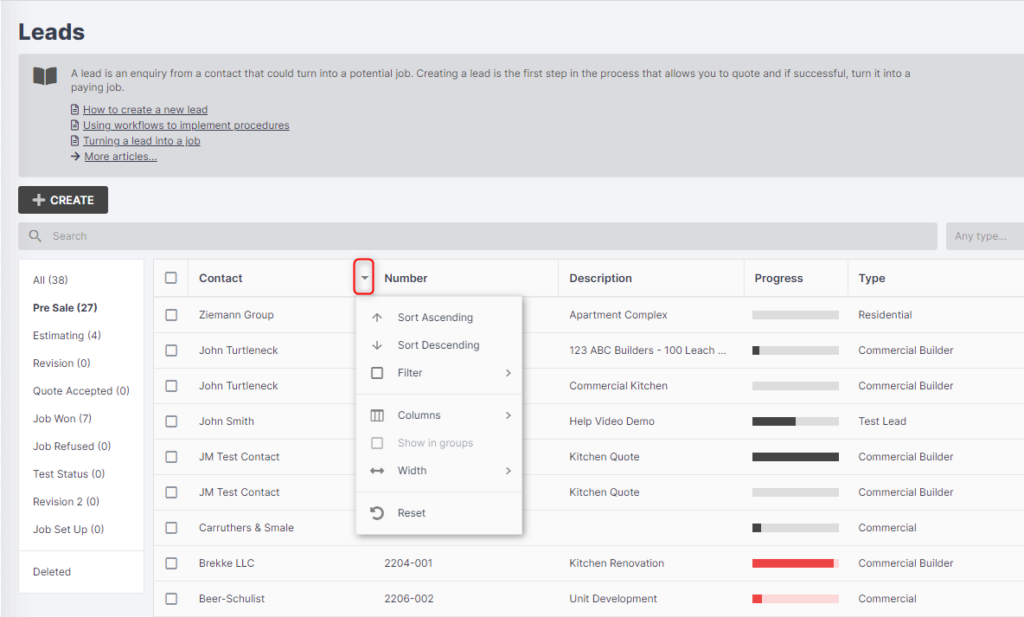
Drag & Drop to Sort
Some grids will have a column called Sort, with the list icon appearing against each item in the grid. This means you can drag & drop rows in the grid to display in your desired order.

Manage Pop-Ups
Some windows in Jobman require pop-up blockers to be disabled. The help menu is one that many are not aware of due to pop-up blockers, preventing full usage of Jobman software. Please do a search on how to prevent certain sites from being blocked, or click on a link below.
Multi Select & Bulk Updating
Many tabs in Jobman will have a multi select menu on the left, enabling you to select and de-select combinations to filter what you can see on the screen.
You can also select multiple items on screen using the checkboxes (see below) and then click With Selected (top-right) to perform an action on multiple items at once.

Show/Hide Work Orders from your Jobs tab
Choose what you see: tick this box to hide all work orders from your Jobs tab.

Activity Updates & Notes
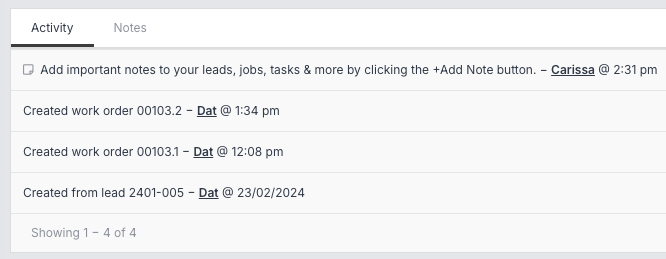
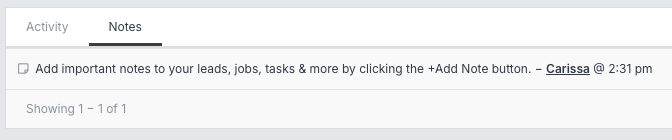
See all recent activity within leads, jobs, tasks, purchase orders, invoices, etc., by scrolling down to the Activity & Notes section. Here you can also add notes!
Help
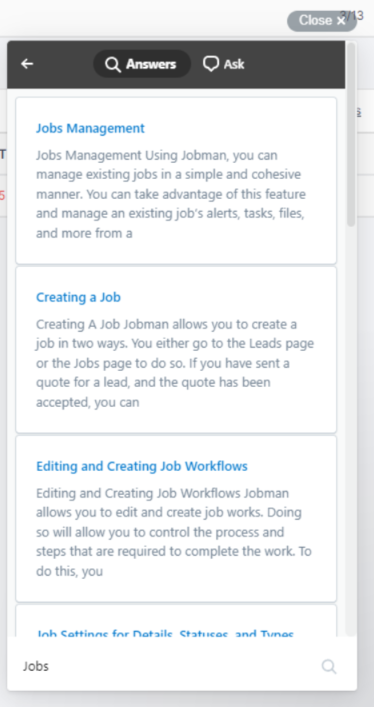
Not sure what to do? We’re here to help. You can access our help tools by clicking Help on the User Menu Panel.
Here you’ll find help documentation, video tutorials, and access to our support line if the documentation doesn’t answer your question.
Simply type in some keywords for what you need to learn about (for example, “how to create a job,“) and read through the help topics. You can read this in the app, or open in a new tab.