




Back to: Complete Jobman Set-Up Guide for Administrators
Create and Update Contact Types
Use contact types to quickly and easily categorise your contacts for future reference. Set the parameters for contact types by adding payment terms and staff access levels.
Please note: To create a contact, you must allocate a contact type.
To create a new contact type, follow these steps:
- From the User Menu Panel on the left, navigate to Settings > Contacts > Types.
- Click Create.
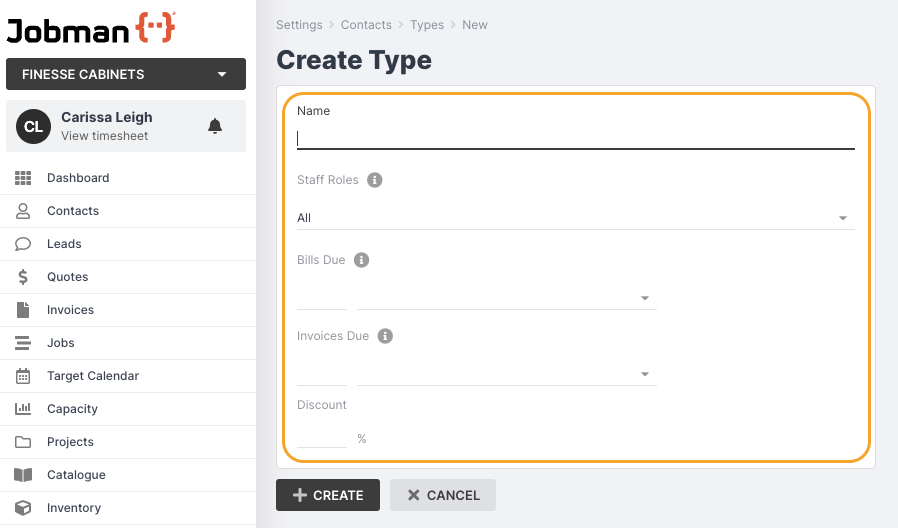
- Name your contact type.
- Choose whether all or selected staff members can access this contact.
- Set your payment terms for bills.
- Set your payment terms for invoices.
- Set a discount if applicable.
- If your contact type is a supplier, you must tick the box for Is supplier.
- Click Create.
You can edit your contact type at any time by clicking into it, then clicking Update, entering any changes, then clicking Save Changes.
Note: You can leave the payment terms blank if you want to use your default payment terms.
Tip: Set a new type for multiple contacts simultaneously by selecting the contacts you wish to update, clicking the With Selected drop-down, and clicking Change Type.

Create and Update Contact Roles
A contact might be an organisation that is a supplier, building company, etc.
You can then add individual people within this organisation to jobs and leads using assigned contact roles, e.g. “Project Manager” or “Installer”.
To create a contact role, follow these steps:
- From the User Menu Panel on the left, navigate to Settings > Contacts > Roles.
- Click Create.
- Name your contact role.
- Click Create.
You can rename your contact role at any time by clicking into it, then clicking Update, entering the new name, then clicking Save Changes.

Create and Track Contact Sources
Contact sources allow you to find out how your clients or customers have heard about your company.
To create a contact source, follow these steps:
- From the User Menu Panel, navigate to Settings > Contacts > Sources.
- Click Create.
- Name your source, e.g. Web Search.
- Click Create again.
Click into one of your contact sources at any time to Update (rename) or Delete it.

Please note: You cannot delete a source if it is currently allocated to one or more of your contacts.
When creating a new contact, you can select a contact source from the drop-down:

You can also click Add new source to create a new source and allocate to this contact on the fly.
To change the source for a contact, follow these steps:
- Go to Contacts and click into the contact you wish to update.
- Click Update.
- Choose a new source from the drop-down, or add a new one by clicking Add new source.
- Click Save Changes.
Tip: When browsing the Contacts tab, you can use the Source column to view and sort contacts by source.
