




Back to: Complete Jobman Set-Up Guide for Administrators
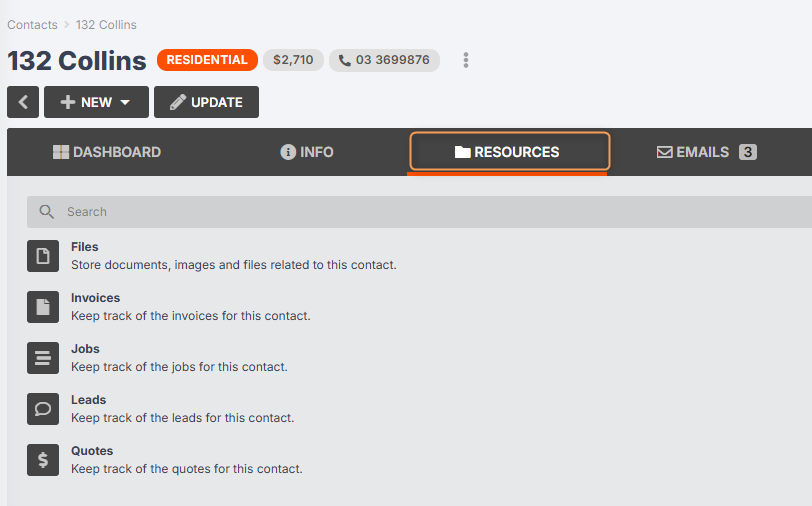
To view files, invoices, jobs, leads, and quotes associated with a contact, go to Contacts from the User Menu Panel, click into the contact you wish to view, then click on the Resources tab:
To view emails sent and received from a contact via Jobman, click into the contact as above, then click on the Emails tab:
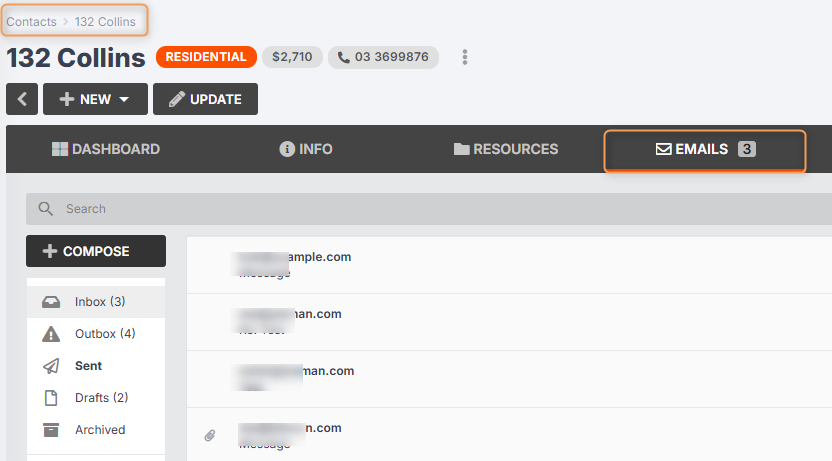
About Jobman’s Email Client
Jobman software offers a built-in email client, so that you can send emails and attachments and respond to your customers directly from your Jobman app!
All staff with the appropriate roles and permissions can view and send emails in Contacts, Leads, and Jobs. This means that relevant information is centralised and accessible to anyone who needs it, rather than being confined to an email chain in one user’s account.
Attach files to emails directly from your organisation’s cloud file storage, or upload as required.
Email Templates
Set up your standard email reply and standard correspondence templates by navigating to Settings > Templates.
Click Create to add a new template, or click into an existing template to edit it.
Did you know? Your Jobman software automatically includes ready-to-use email templates!
Sending Emails to a Specific Contact or Person
- When you are composing an email in Jobman for a specific contact person/member, Jobman will attempt to fill the name in for you. However, in some cases the name can’t be determined, which means this field will be blank in the final email.
- In our default templates, we add this variable using this syntax: “{{ name | default: contact.name }}”, which inserts the contact name if the person’s name cannot be determined.
- The “name” variable will not be populated until you have selected a recipient for the email.
- Please note that the name only gets filled in if you have not made any changes to the email content or if the email has been saved as a draft. If, for example, you select “John” as the recipient, then write the email, then change the recipient to “Jane”, the name will not change from John to Jane.
How Do I Get Incoming Emails to Send to Jobman?
Provide a link to your customers that will deliver emails to your Jobman software under Contacts > [Contact Name] > Emails, as shown below:
