




Back to: Complete Jobman Set-Up Guide for Administrators
What are Labour Centres?
Labour centres are a measure of your operational capacity, broken into segments. Each labour centre is linked to one or more operations, (such as “Showroom Consultation”, “Follow-Up Call”, “Client Discovery”), and consists of the number of staff available for that operation, multiplied by the number of available hours each day.
What are Operations?
Operations serve as the connection between labour centres and tasks, designed for reporting and capacity planning. Customise operations to fit your organisation’s needs.
Each operation will be assigned to one or more tasks, which are in turn organised into workflows. When your staff track time against their tasks, the corresponding operation will be shown in your job cost report, which will display estimated versus actual time spent on each operation.
How to Create Lead Operations
From the User Menu Panel on the left, click Settings > Operations > Leads > Create.
- Name your operation. You might want only one generic operation (e.g. “Sales”), or you might want to break your sales process down into individual operations (e.g. “Follow-Up Call”).
- Choose a colour (optional – see next section).
- Assign your operation to a labour centre (you can do this later if you haven’t created any labour centres).
- Set your operation costs, overheads, wastage and profit margins if required.
- Click Create.

Tip: Update an operation at any time by clicking into the operation and selecting either Update or Delete.
Please Note: You cannot have two operations with the same name.
Creating a Labour Centre
To create a new labour centre, follow these steps:
- From the User Menu Panel, navigate to Settings > Labour Centres.
- Click Create.
- Name your labour centre, e.g. “Sales Team”, or “Laser Cutting”.
- Using the Operations drop-down, select all applicable operations for this labour centre.
- Enter the number of hours available for each day. (You may have different hours available on different days.)
- Click Create again.
Important: If you do not have any available hours on weekends or public holidays, make sure to enter a zero (0) in these fields, otherwise you will be set to infinite availability by default.
Example:
You might have 3 sales staff who each work 8 hours per day, Monday to Friday.
- If you allocate 7 hours of their working day to sales operations, you would allocate 21 hours (3 x 7) to each day – with 0 hours on Saturdays and Sundays.
- If one of your sales team members works half-days on Wednesdays, you would adjust this and only allocate 17 hours 30 minutes to Wednesdays.
- If one of your sales team members helps out in the factory on Fridays, you would need to remove 7 hours from the “Sales Team” labour centre for Friday, and add those 7 hours to a factory-related labour centre for that day.
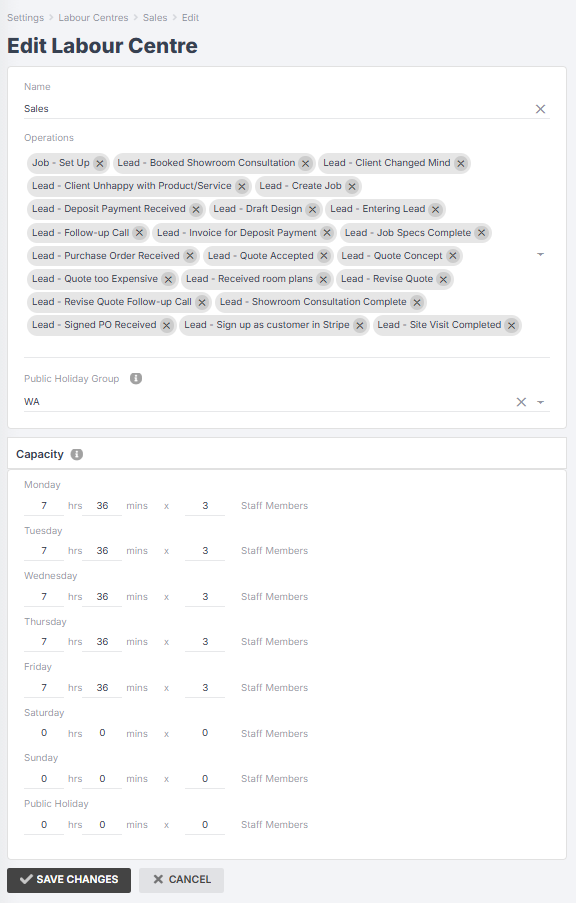
Example: Labour Centre set-up
Tip: When you create a labour centre and link it to one or more operations, your changes will automatically be reflected in Settings > Operations:

Editing or Deleting a Labour Centre
To make edits to a labour centre, follow these steps:
- From the User Menu Panel, navigate to Settings > Labour Centres.
- Click into the labour centre you want to edit.
- Click Update.
- From here you can change the name, add/remove operations, or update the available hours if required.
- Click Save Changes.
If you need to delete a labour centre, either click into the one you want to delete and hit the delete button, or delete multiple by clicking the checkboxes from the Labour Centre screen and using the ‘With Selected’ drop-down to delete.