Back to: Complete Jobman Set-Up Guide for Administrators
An agenda screen is a to-do list for one or more staff in your organisation. Each agenda screen is typically created for a specific department, area, or team within the organisation, and contains a list of all job, lead, or project tasks needing to be completed by that team, in priority order.
Why should I have agenda screens set up?
Let agenda screens take care of your workflow.
- Each agenda screen gives your staff a personalised to-do list, which helps reduce downtime between completing tasks, and ensures that due dates are met.
- If a lead needs to be prioritised, you can change the due dates or update the lead’s priority, and staff will see this on the agenda screen.
- Use the message function to deliver important instructions to staff throughout the day.
Creating an Agenda Screen for Your Lead Tasks
To create an agenda screen for your lead tasks, follow these steps:
- From the User Menu Panel, navigate to Settings > Agenda Screens.
- Click Create.
- Name your agenda screen.
- From the Item drop-down, select Lead.
- Click Create again.
You will be taken to a page for your new agenda screen, where you can customise further.
Customising an Agenda Screen
When you click into an agenda screen from the list under Settings > Agenda Screens, you will be shown some options at the top of the page:

- Update: Change the name of the agenda screen.
- Message: Type a message that will display on the agenda screen for staff to see.
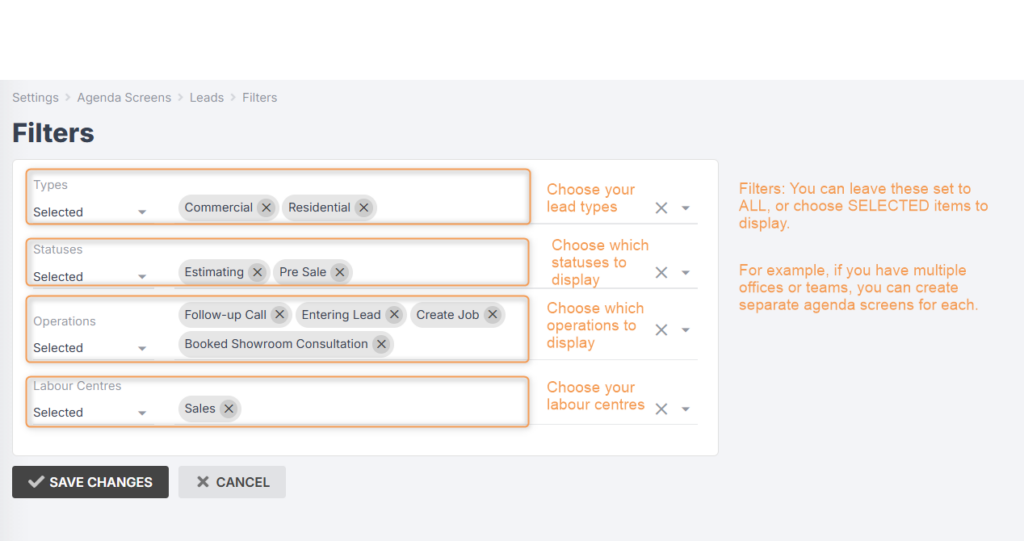
- Filters: Further define the parameters of your agenda screen:
- Members: Assign or remove staff to view the agenda screen from their dashboard. You can also restrict staff to their own tasks, so they will not see tasks assigned to other members in that agenda screen.

- Share: Generate a link to view and display your screen. Read More
- Delete: A pop-up will ask you to confirm you want to delete the agenda screen. Deleted screens can be viewed using the Deleted filter at the top-right in Settings > Agenda Screens:

Understanding Your Agenda Screen
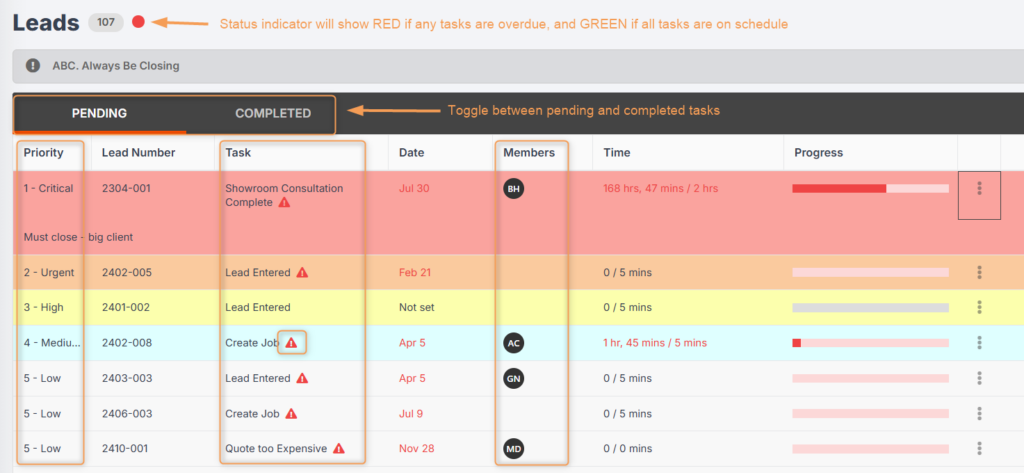
See the image below for an overview of what your agenda screen might look like.
- Click into a lead to update start/target dates.
- Click into a lead to change its priority level.
- Click into a task to update it (start progress, mark complete or N/A, set target dates, upload files, assign to members, etc.)
- Add notes to leads.
- View, assign or remove staff members from a task.
- See the progress against lead workflows.
Creating a Priority Level
To create different priority levels for your tasks, follow these steps:
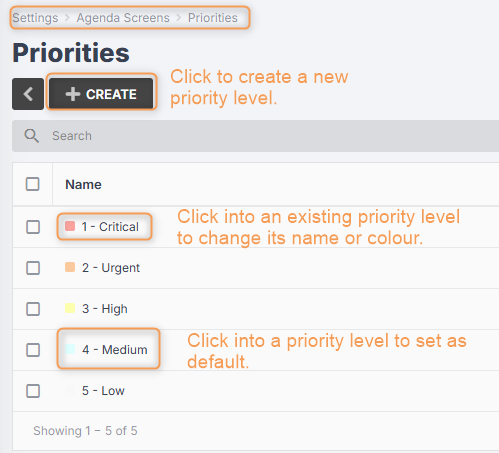
- Go to Settings > Agenda Screens and click Priorities:

- Click Create.
- Name your priority.
- Choose a colour that will indicate your priority.
- Click Create again.
To update an existing priority, click into it and you can change the name or colour, or Set as Default.
You can set a priority level as the default, meaning it will automatically be assigned to all leads/jobs when they are created.
Assigning a Priority Level to a Lead
You can assign or update a priority in a lead by following these steps:
- Click into the lead.
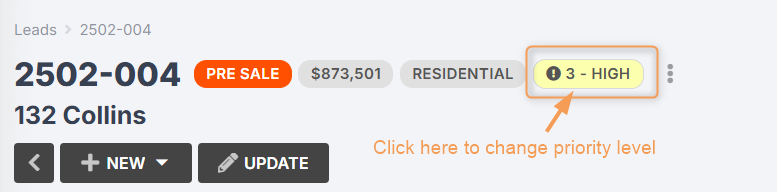
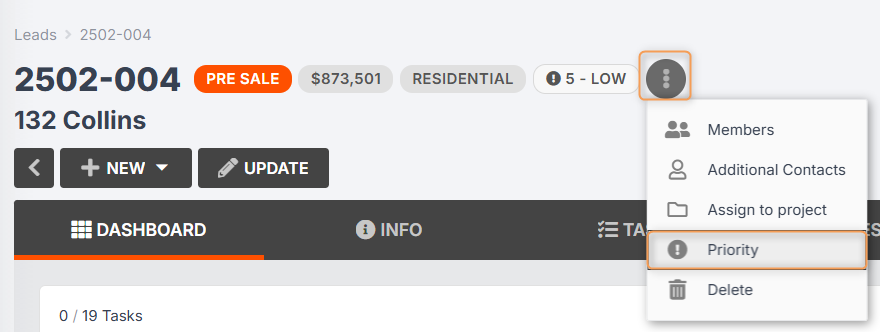
- Click the three-dot menu next to the lead number (see below).
- Click Priority.
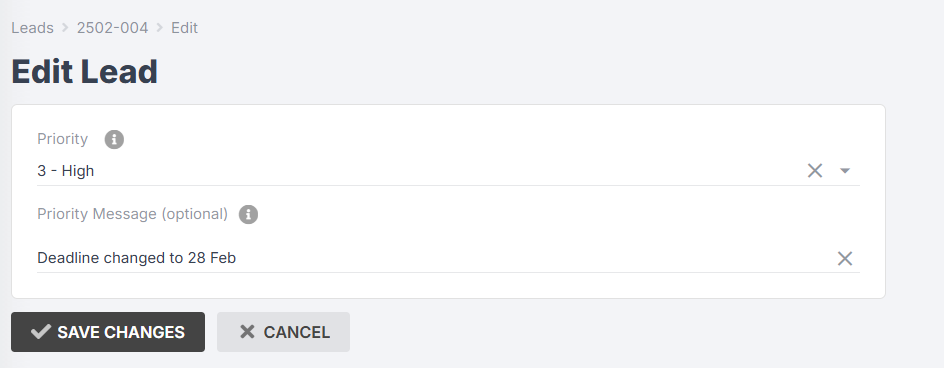
- Choose a priority level from the drop-down (see below).
- Write a message (optional).
- Click Save Changes.
You can also click the current lead priority level to change it: