Back to: Complete Jobman Set-Up Guide for Administrators
Creating Internal Jobs for Staff Leave
To create an internal job for staff leave, follow these steps:
- Go to Settings > Operations > Create and create an operation for each of your staff leave types. Make sure to select the appropriate leave type when creating the operation:

- Go to Jobs > Create and create a new job. Make sure to use your own organisation as the contact, and use or create a job type called “Internal”.
- In your new job, go to Tasks and create a number of Steps, Statuses and Tasks relevant to each of your staff leave types. Make sure to link each task to the correct operation. For example:

- Make sure that all tasks are set to “Requires None”, and that no target dates are set for any tasks.
When a staff member applies for leave, they can enter their leave into their timesheet under the correct job and task.
Note: This can only be done by an office user, so when your kiosk users apply for leave, they will have to notify a relevant administrator in your organisation, who can make the timesheet entry on their behalf.
Public Holidays
Factor public holidays into your scheduling by creating public holiday groups. A public holiday group is a collection of public holidays that can be assigned to staff members and labour centres.
First, go to Settings > Staff > Public Holiday Groups.
If you can’t see Public Holiday Groups under Settings > Staff, make sure that your staff role has permissions to View staff holiday group settings and Update staff holiday group settings.
If you selected a region when setting up your organisation in Jobman, you will already have a default public holiday group set up for you.
You can manually add public holidays to your chosen public holiday group. However, if you choose a region when you create or edit a public holiday group, the standard public holidays for that region will be automatically added to your software and kept up to date.
- For staff members that belong to a public holiday group, their Pay Rate will factor in the public holidays within that group.
- For labour centres that belong to a public holiday group, their Capacity and scheduling will factor in the public holidays within that group.
Setting a public holiday group as the default will automatically apply it to staff members and labour centres unless otherwise specified.
If your organisation operates within multiple regions, you can set up multiple public holiday groups and apply them manually to each staff member and/or labour centre as required.
Creating a Capacity Adjustment
Sometimes you may want to make temporary capacity adjustments, for example if one or more staff are on leave, or if your organisation will be closed for a certain period.
To create a capacity adjustment, follow these steps:
- Go to Settings > Labour Centres and click into the labour centre you want to make a capacity adjustment for.
- Click Capacity Adjustments:

- Click Create.
- Name your capacity adjustment, e.g. “Christmas Shutdown” or “Jane Annual Leave”.
- Enter a date range.
- Enter the new available hours for this period.
- Click Create again.

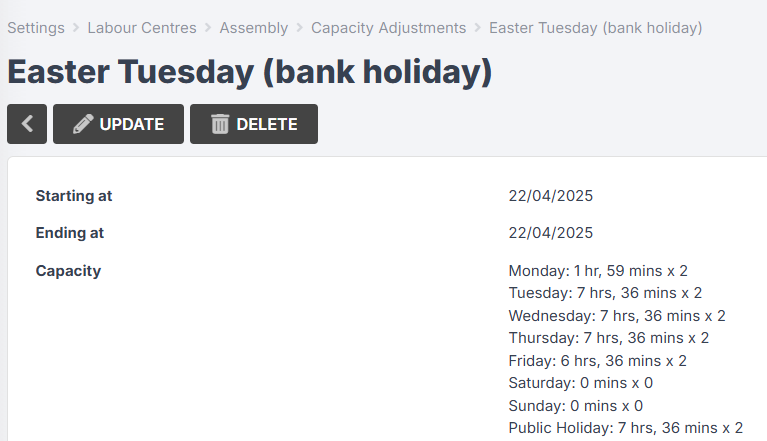
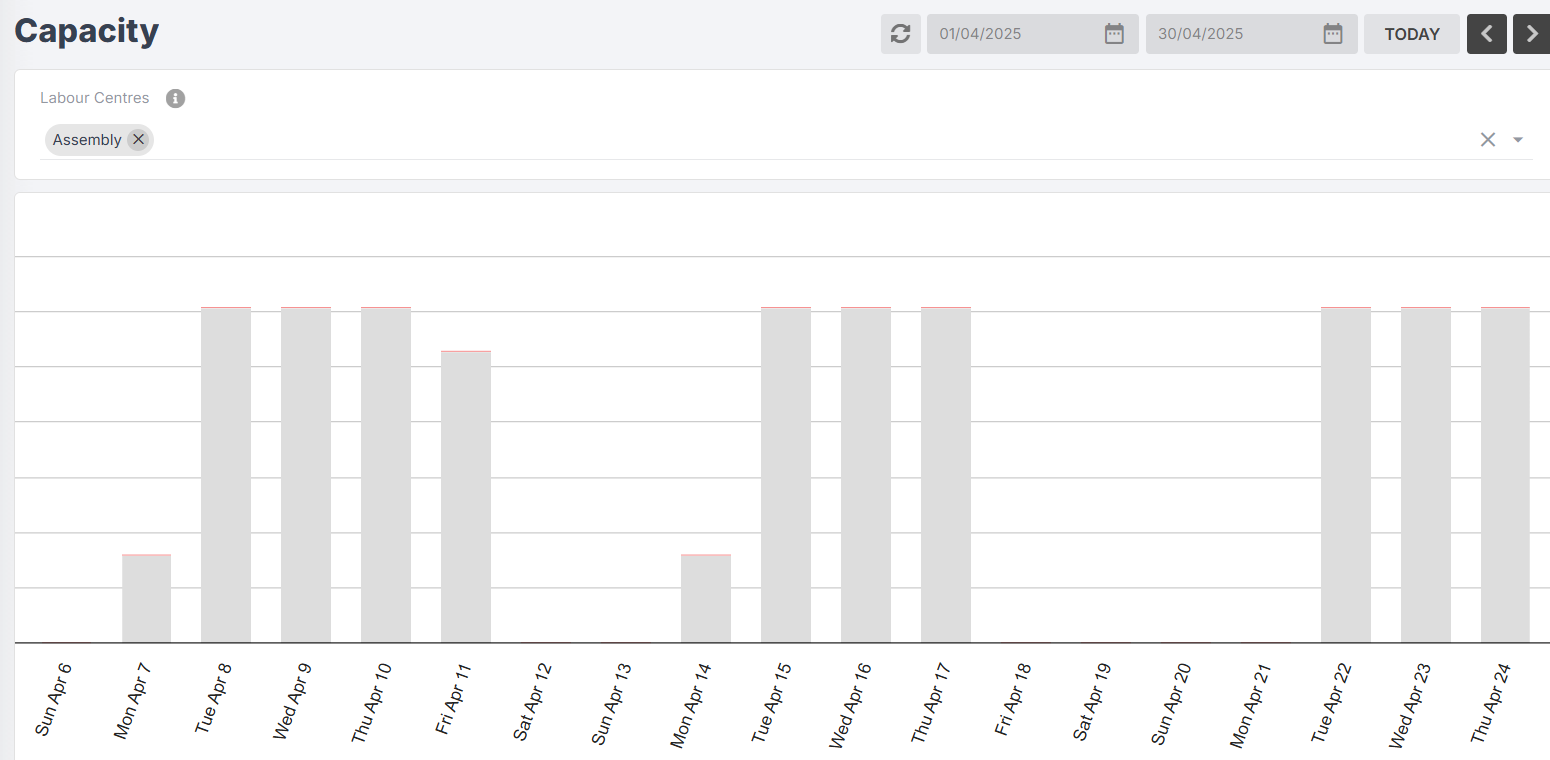
You can also use capacity adjustments to add capacity on dates that are included in your public holiday group but which your staff will be working on, e.g. bank holidays: